
Each time you click on content in the web browser panel, Sequentum Cloud does some processing in the background to calculate the selection XPath. XPath is a common syntax for selecting in XML and HTML documents. Sequentum Cloud uses a standard implementation that supports XPath v1.0 syntax, and also supports a range of new methods specifically designed to make web data extraction easier. Sequentum Cloud has a range of tools that help you create a precise XPath, without the need to know the syntax. Eventually, you may find the need to fine-tune an XPath manually, and then you will need to learn the XPath syntax.
Each time you make a selection in the web browser, you can view the selection of XPath in the Selection panel (see the figure below).
Selection panel Screenshot.
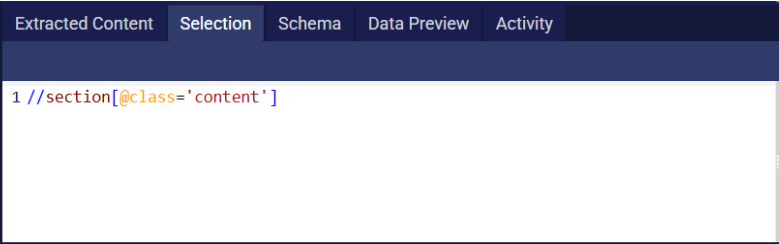
The XPath in the figure above is:
//section[@class='content']
It contains these selection steps:
1.Selects all <section> tags within the webpage having the class attribute value content.
Read more in the XPath and Selection Techniques article. To learn more about XPath, we recommend that you consult a good reference guide such as this one.
https://www.w3schools.com/xml/xpath_syntax.asp
Multiple XPaths
A selection can consist of multiple XPaths, which is useful when extracting web content that may appear in different locations on a webpage. This allows for flexible data selection across various structures.
Selecting Multiple XPaths
You can specify multiple XPaths in two ways:
-
Manually enter each XPath separately by pressing Enter Key.
-
Use the Pipe symbol (|) to combine multiple XPaths.
Example 1: Enter XPaths Separately
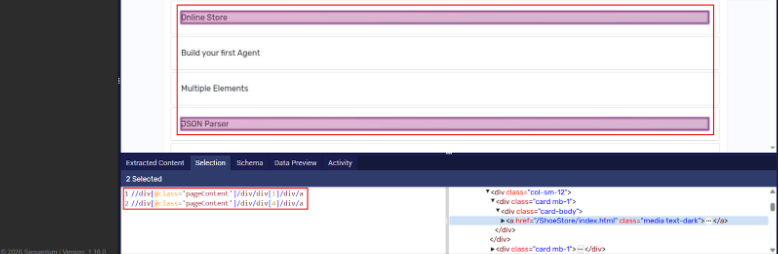
Manually input each XPath into the Content Command by pressing Enter after each XPath:
//div[@class='pageContent']/div/div[1]/div/a
//div[@class='pageContent']/div/div[4]/div/a
This results in two selections on the webpage, highlighted in pink over the relevant text.
Example 2: Use the Pipe Symbol (|)
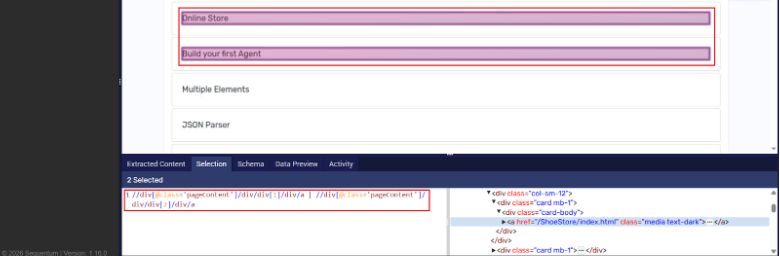
Alternatively, you can combine multiple XPaths using the Pipe (|) symbol:
//div[@class='pageContent']/div/div[1]/div/a | //div[@class='pageContent']/div/div[2]/div/a
This also results in two selections, highlighted in pink.
Multiple XPath expressions can be applied across all commands where XPath selection is applicable.