
Sequentum Cloud agents can be configured to record videos of their interaction with websites. This can be used to provide visual evidence of exactly what an agent has done when performing critical operations such as checkouts on e-commerce websites.
This feature should not be used as a visual logging mechanism for long running agents, since that would create very large video files. We recommend that you only use this feature for agents that run for a maximum of 15-30 minutes.
We currently don’t support video recordings of static web browsers, so only dynamic web browsers will be recorded at this time. This feature is intended for specific use cases; it does not apply to combined sessions, as each session has its own individual video.
Configure an Agent to Record Video
To configure an agent to record video, open the agent in the Sequentum Cloud editor, and then select the Agent command and open the Runtime options tab.
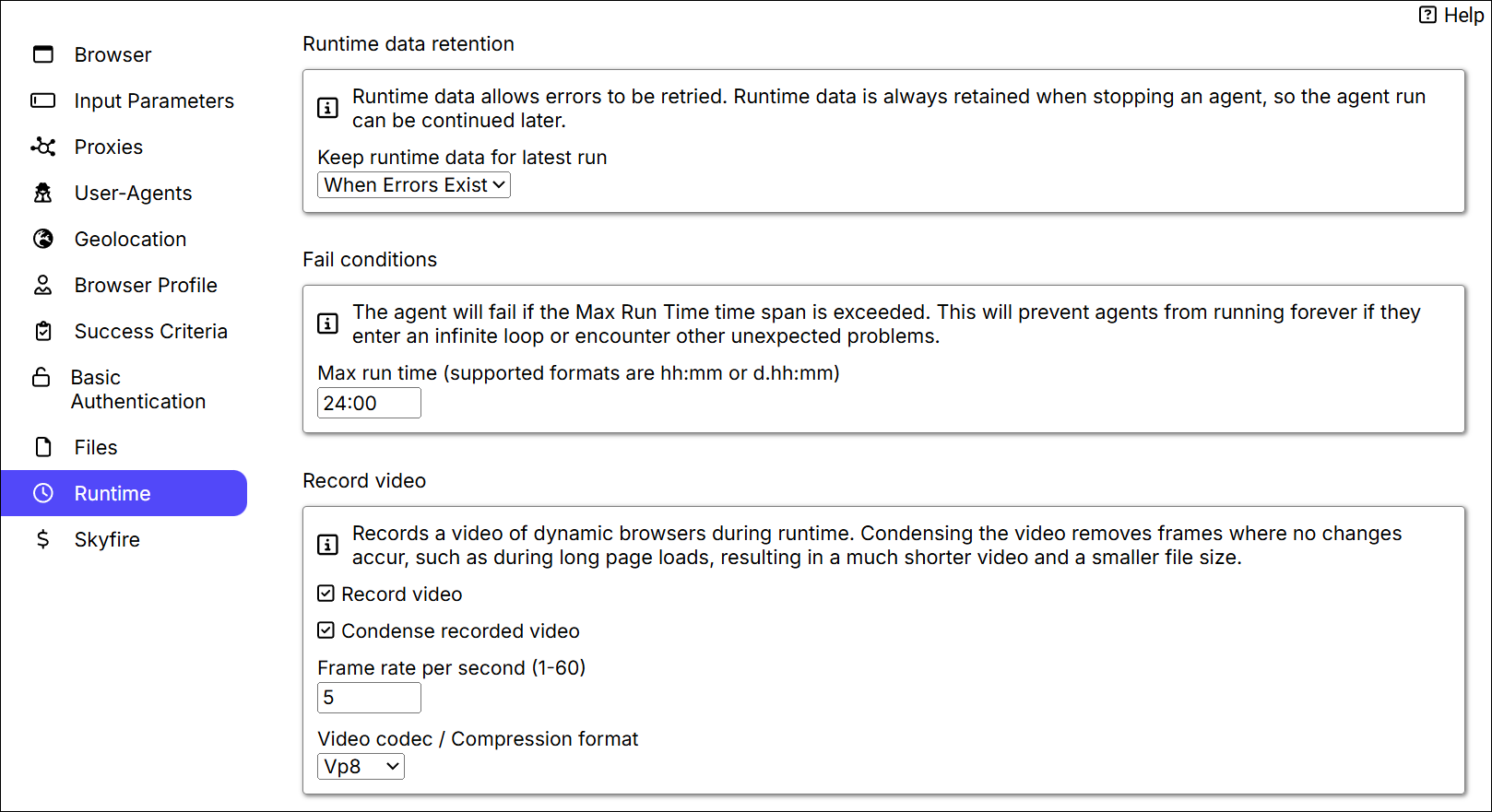
The Record video section has the following available options.
-
Record video. This turns video recording on or off.
-
Condense recorded video. Condensing the video removes frames where no changes occur, such as during long page loads, resulting in a much shorter video and a smaller file size.
-
Frames per second. This determines how smooth the video will look. A higher frame rate will result in a better looking video but with a bigger file size. We recommend a frame rate below 10 to limit the size of the video file.
-
Video codec / Compression format. We currently support VP8, VP9 and MJPEG. VP8 offers a good compromise between speed and file size. VP9 offers slightly smaller file size with better video quality but is significantly slower. MJPEG offers the best speed but produces very large video files.
Accessing the Video Recording
Video recordings will be included with all other downloaded files and delivered to any export destination configured in the agent. If you’ve chosen the video codec V8 or V9, the video will be available to play directly in your browser, and the video file will have the file extension .webm. If you’ve chosen MJPEG, the video file will have the file extension .avi, and you’ll need to download the video file and display it in a video player that can play MJPEG files.