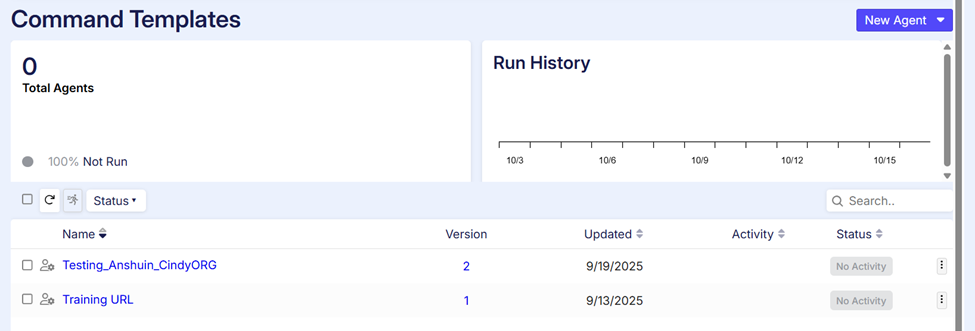
Command Templates
Command Templates are like reusable blocks of steps. If you have a set of actions that you want to use again and again in one agent or in many agents, you can save those steps as a Command Template. Then, instead of creating the same steps every time, you just use the template. It saves time and keeps things consistent.
Use Case
A template can be useful in following scenarios:
-
When you have websites with similar structure and you need to use the same structure for extracting the data from similar multiple sites.
-
Captcha solving templates can be used for solving the similar kind of captcha on different websites.
-
If the delivery/export destination is similar to any prior agent, one can use an export template for delivery.
Creating a command Template
-
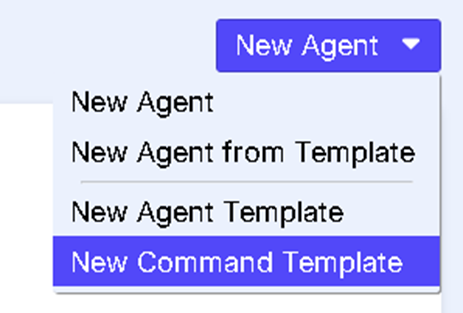
To begin with an agent template, navigate to the Home dashboard, on the top right, there exists a drop down arrow next to the New Agent button. On the drop down we have the option of New Command Template. Opting it would open the editor window and we are good to go, developing a command template.
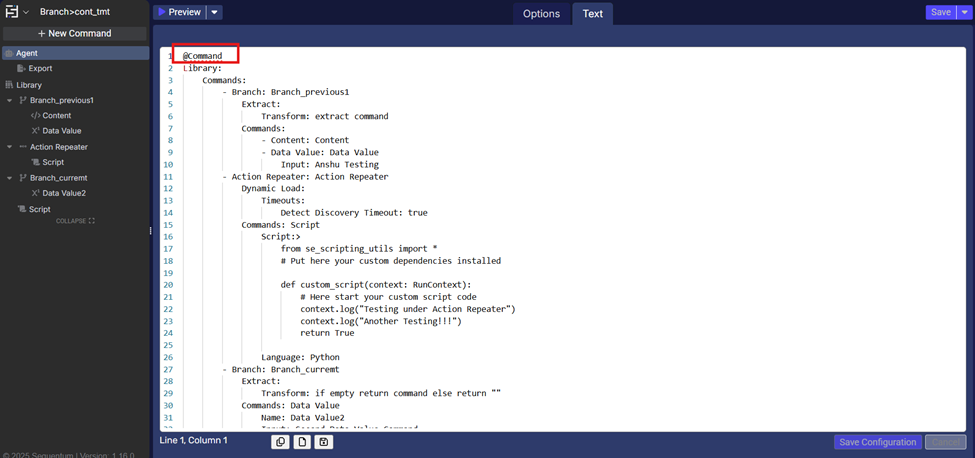
Kindly note, a template agent is similar to an agent but the difference lies in the structure in the ‘Text’ tab. It states with the “@command”
-
Create one flow of commands in the editor as usual.
-
Drag commands from Agent to Library.
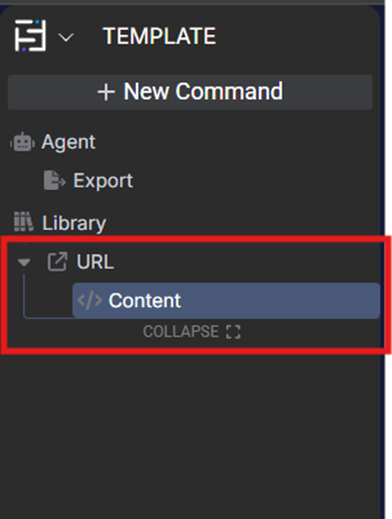
-
Click "Save" on the agent—there's no need to select a space manually. If a Commands Space doesn't already exist, it will be created automatically. If it does exist, the command template will be saved there.
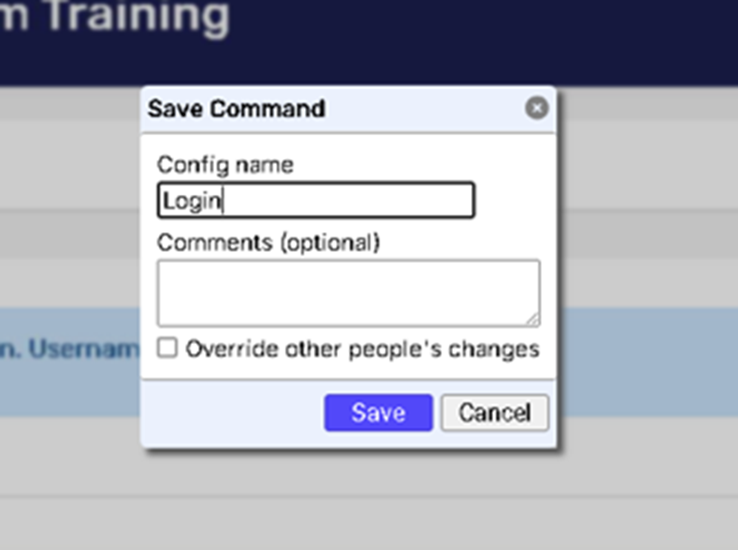
Note : In order for an command template to be used/applied to other agents, it must be present in a ‘Commands’ space.
Using a Command Template
-
Create a new agent and save the same before applying the template to the agent.
Note : We can not apply a template to an unsaved agent. -
Now click on the command palette(New command button) custom commands, utilities and regular commands will be shown in the window. Now click or drag the required template from the Custom Commands Section.
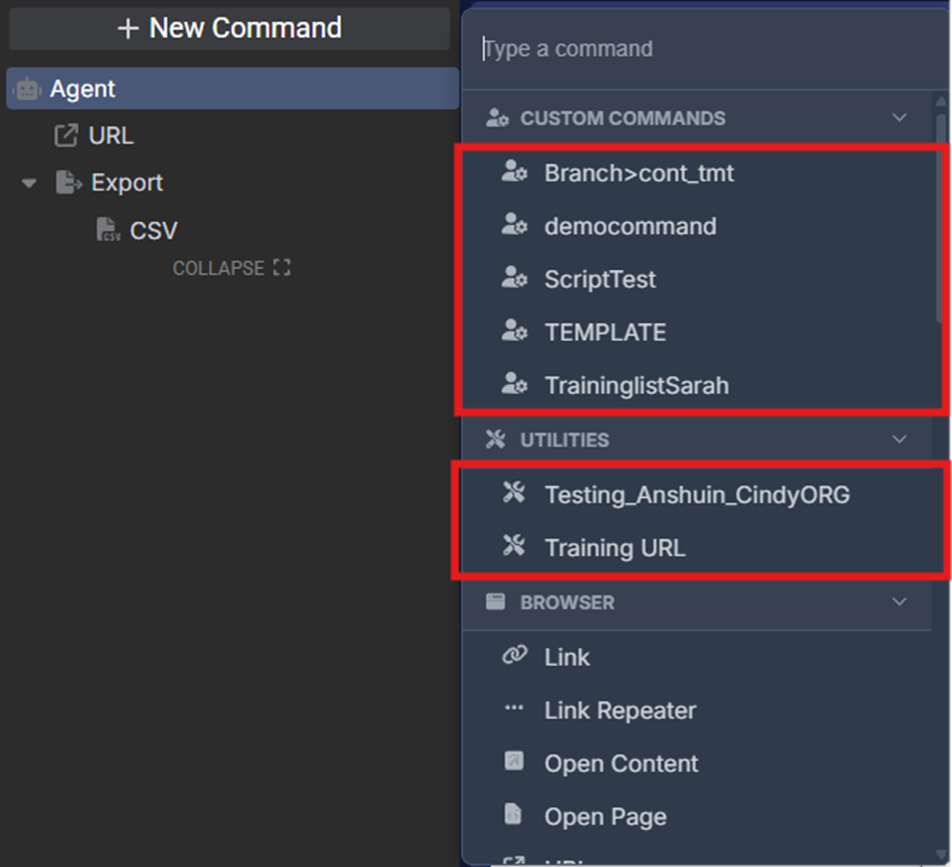
-
Once done the template will be added to the agent panel.
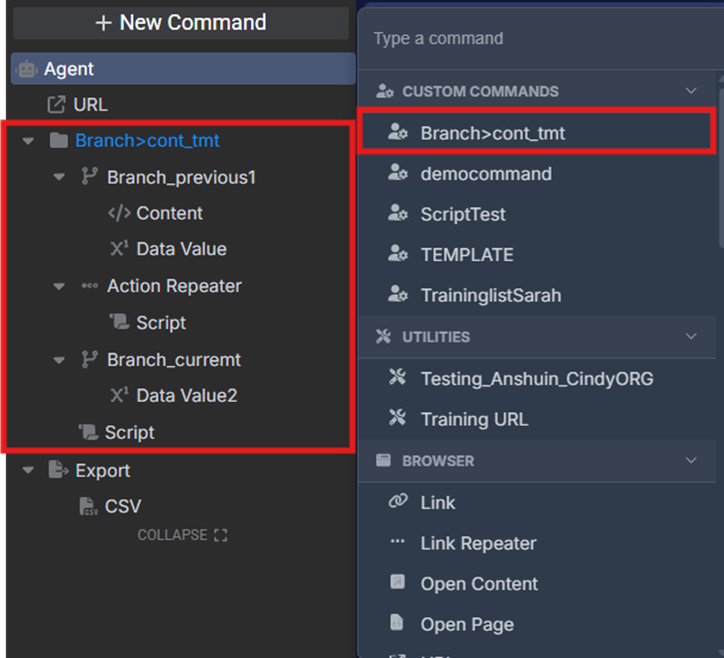
Note :
-
The template can be distinguished in the agent panel with its blue heading.
-
Users can't change the template from the agent panel—it can only be edited from the Commands Space.
-
Users can delete a command template or move it up and down within the agent panel to change its position.
Creating/Using a Global Command (Utility)
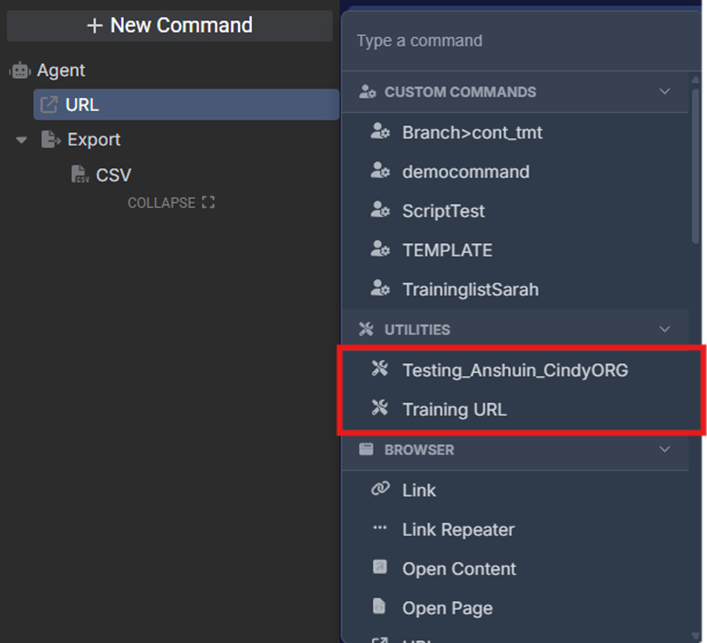
If user want to share a command template with another organization, they can create a Command Templates Space in your own organization. When you move or copy a command template from the Commands Space to the Command Templates space, it becomes visible to other organizations. All organizations should now be able to access these command templates from the Utilities Section of the Command Palette (seen above).
Note:
-
Only the admin org should be able to share command templates globally.
-
Global template are visible ONLY to other organization