
The Unblocker feature in Sequentum Cloud automatically detects website blocking and applies multiple advanced unblocking strategies to help users continue to extract data smoothly. It intelligently analyzes the website’s protection mechanisms and attempts a series of automated techniques to bypass blocks, ensuring reliable website access and agent execution.
Unblocking Techniques Used
The Unblocker combines several categories of automated strategies, each designed to counter different forms of website blocking.
1. Proxy Methods
Techniques include:
-
Proxy rotation
-
Changing proxy region and location
-
Switching proxy pools
-
Using US residential proxies
-
Disabling browser proxy usage when needed
2. Browser Identity Adjustments
Techniques include:
-
Establish a new device fingerprint
-
Modifying or rotating user agents
-
Disabling GPU rendering
-
Masking or altering browser fingerprint values
3. Behavior Simulation
Techniques include:
-
Adjusting page load timing
-
Modifying interaction delays
-
Simulating human-like browsing patterns
-
Retrying with alternative load behaviors
4. Storage Control
Techniques include:
-
Clearing cookies
-
Clearing local storage
-
Clearing session storage
5. Custom Tools
Techniques include:
-
Running custom scripts where required
-
Enabling ad blockers
-
Resizing browser windows to human-like dimensions
These strategies work together to mimic real user behavior and bypass protections such as bot detection, anti-scraping systems, and fingerprinting.
Accessing the Unblocker Feature
Follow the steps below to locate and use the Unblocker in Sequentum Cloud.
Note: For the 'Unblocker' feature to function properly, users must remain on the agent interface and avoid interrupting the unblocking process.
Step 1: Log in to Sequentum Cloud
Log in using valid user credentials.
Step 2: Create a New Agent
Navigate to New Agent using:
-
The main “New Agent” button, or
-
The “New Agent” option from the dropdown menu

Step 3: Enter the Target URL
In the Agent Editor window, enter the desired website URL into the built-in browser.
Step 4: Trigger the Unblocker
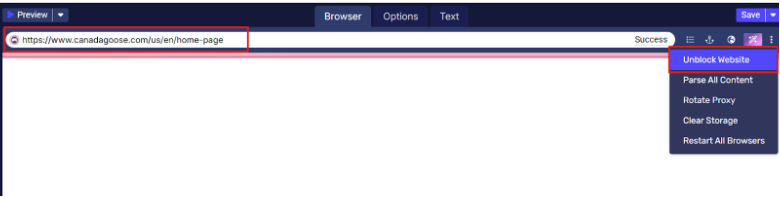
You may activate the Unblocker in two ways:
Option 1: Before Execution
Use the Unblock Website option under Browser Options before running the agent.
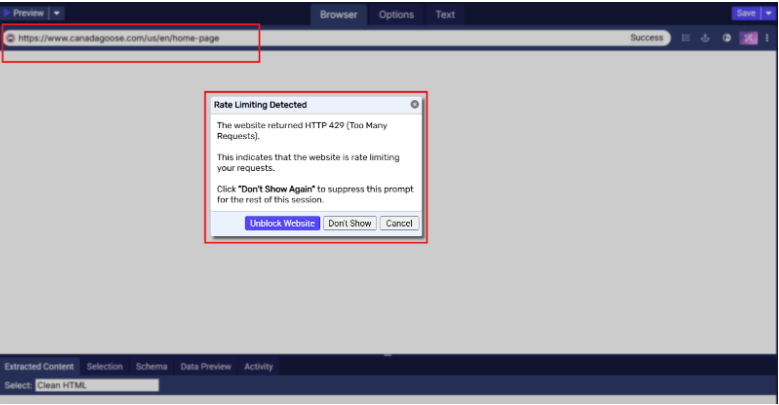
Option 2: After Blocking is Detected
If blocking occurs while loading the site, Sequentum will automatically display a blocking alert pop-up.
Click Unblock Website from the pop-up window.
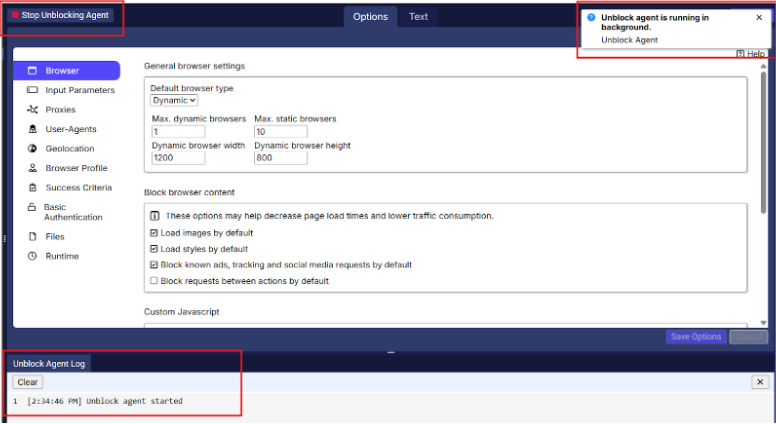
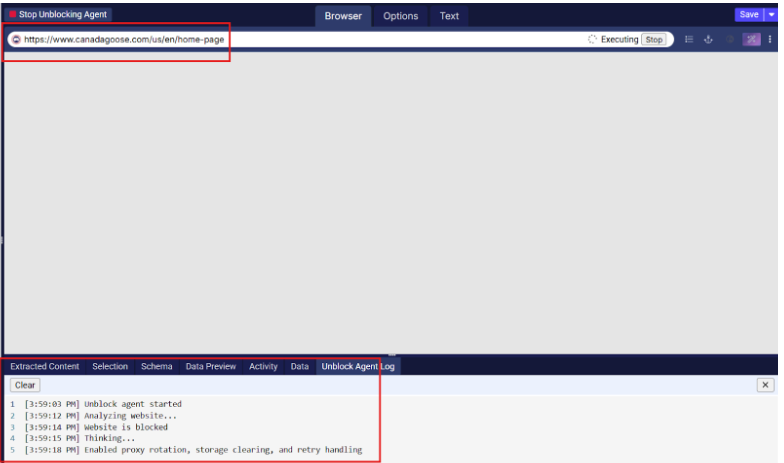
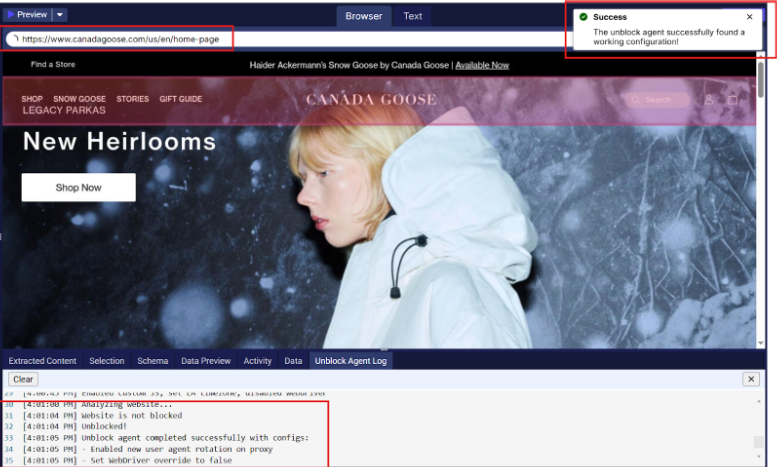
Step 5: Automatic Unblocking Process
The Unblocker runs through multiple unblocking techniques.
All relevant methods—proxy switching, browser identity changes, behavior simulation, and more—are applied automatically.
Step 6: Proceed with Agent Creation
Once the blocking has been successfully bypassed, continue with agent configuration and data extraction as usual.
Advantages of the Unblocker Feature
-
Automatically handles complex website blocking mechanisms.
-
Eliminates the need for manual troubleshooting of blocks.
-
Ensures smooth, uninterrupted data extraction.
-
Saves time and effort by applying intelligent, automated strategies.
-
Enhances crawling reliability for highly protected websites.