
Overview
AI Assistant is a chat panel inside the Sequentum Cloud Agent Editor that builds and changes agents for you from plain-language requests.
Instead of adding commands one at a time, you describe what you want, for example "Extract the title, price and rating of every book on this site", and the AI Assistant creates the agent steps for you. You can then ask for changes, review exactly what changed, and undo anything you do not like.
With the AI Assistant you can:
-
Build a new agent from a prompt.
-
Ask follow-up requests to change or extend the agent you already have.
-
Review the changes the Assistant made, and undo them with one click.
-
Ask how-to questions about the editor and get an answer without changing the agent.
-
Rate each response with a thumbs up or thumbs down so Sequentum can improve the Assistant.
Note: The AI Assistant works on the agent that is open in the editor. Your agent stays fully editable by hand at any time.
Before You Start
The AI Assistant is part of the Sequentum Cloud Agent Editor, so you need nothing beyond a Sequentum Cloud account and access to a space where you can create or edit agents.
Keep the following in mind as you work:
-
The Assistant changes the agent that is open in the editor. Use Review Changes after each request, and Undo Changes if the result is not what you wanted.
-
Responses are generated by an AI model, so the same prompt can produce slightly different agents. Always check the result with Preview or a test run before you rely on it.
-
Be specific. A request that names the site, the data fields and any filters gives the best result.
-
Do not type passwords, API keys or other secrets into the chat. Your prompts and the agent's configuration can be included in diagnostic and feedback reports (see Rate the Assistant's Responses).
-
Rating a response sends your feedback to Sequentum. See the Rating Responses section for what happens next.
Open the AI Assistant and Build an Agent
In this section, we will open the AI Assistant and use it to build or change an agent.
-
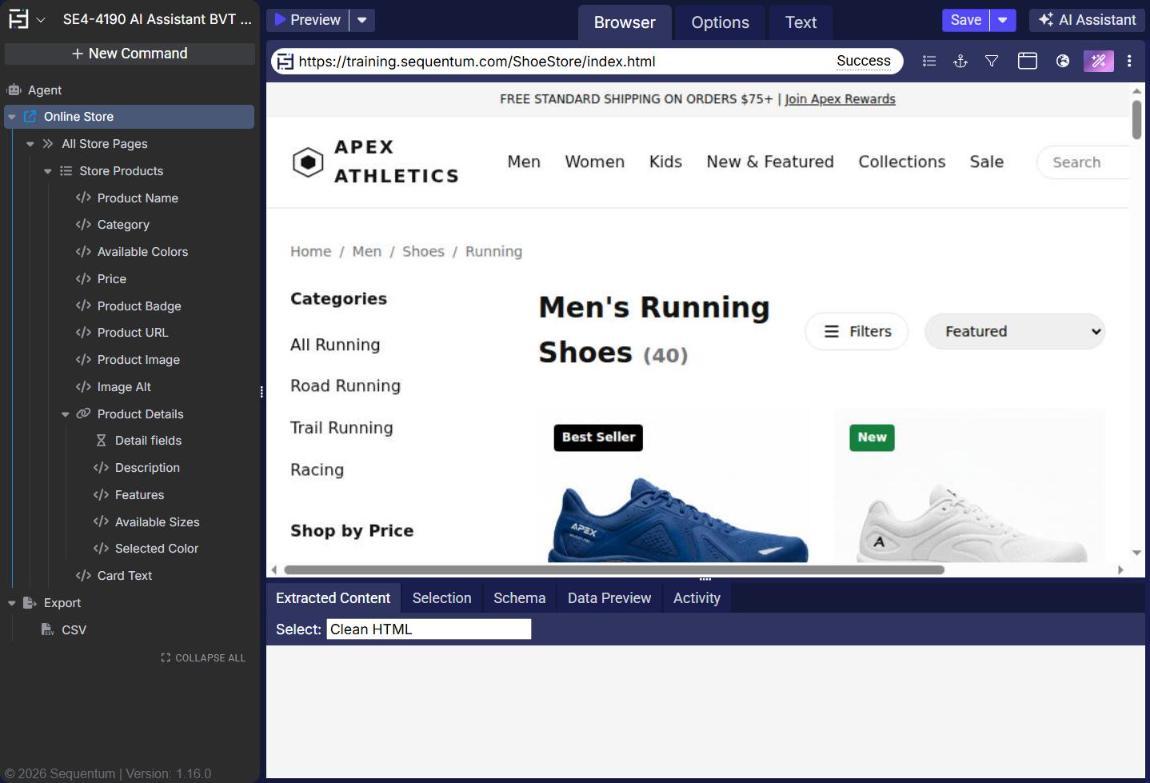
Open your agent in the Sequentum Cloud Agent Editor. From the agent's details page, click the Edit Agent button.
-
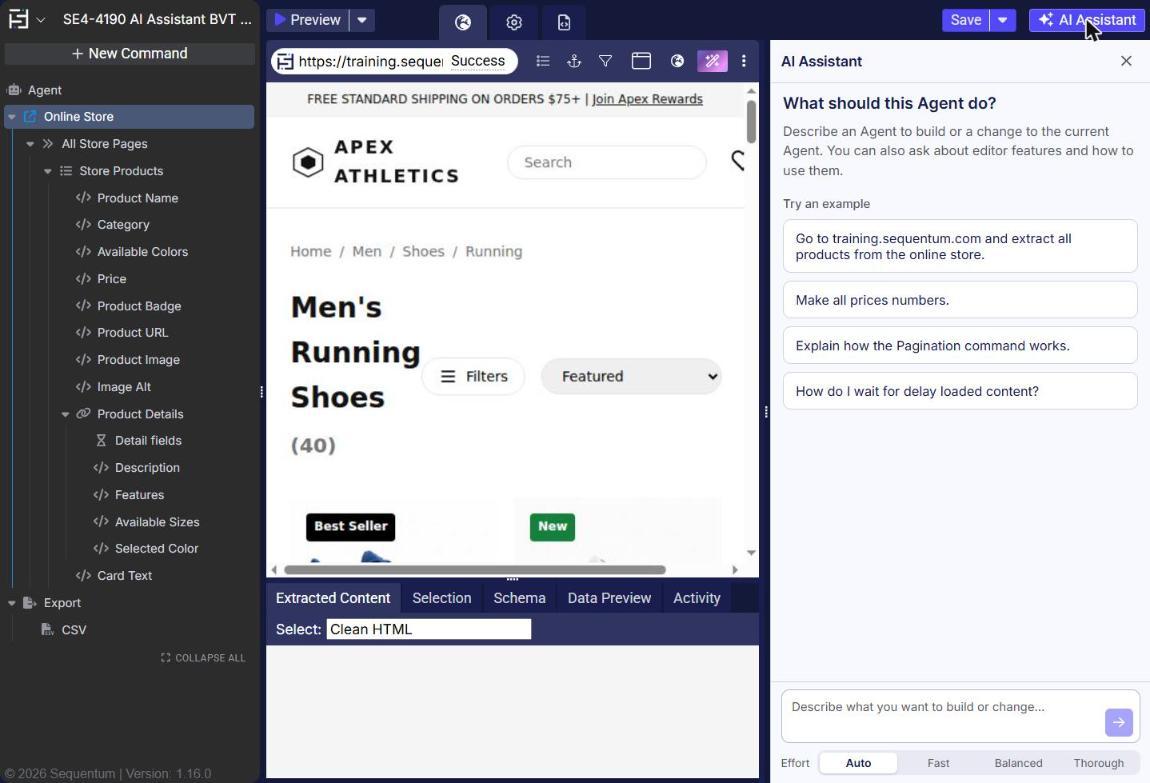
In the top-right corner of the editor, click the AI Assistant button. The AI Assistant panel opens on the right side of the editor.
-
The panel shows What should this Agent do? and a few examples under Try an example, such as extracting all products from an online store or asking how the Pagination command works.
-
Type your request in the Describe what you want to build or change... box. Be as specific as you can: name the website, the data you want and any filters.
-
Optionally, pick an Effort level at the bottom of the panel: Auto, Fast, Balanced or Thorough. Auto is the default and lets the Assistant decide how much effort a request needs.
-
Click the arrow button to send your request.
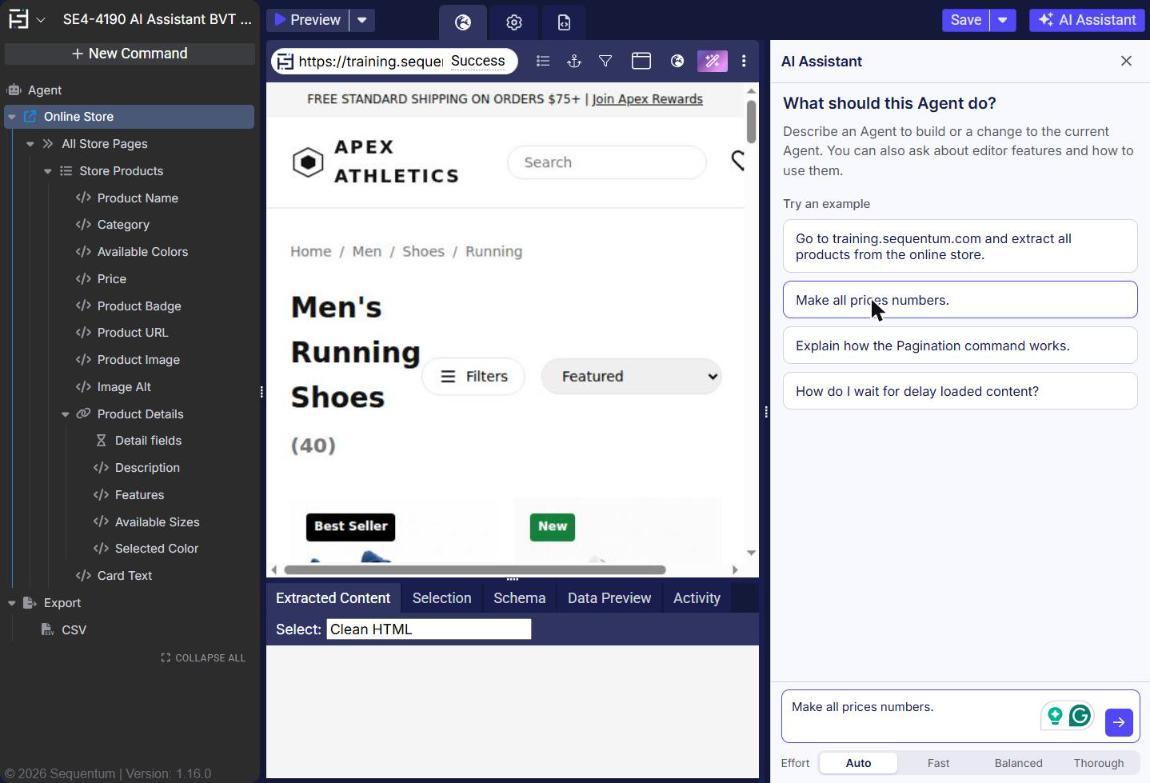
Note: Clicking one of the examples only fills the message box. Click the arrow button to send it, and edit the text first if you want to change it.
While the Assistant works, the panel shows a live checklist of what it is doing, such as reading your agent, updating commands and testing with sample values, and a timer with the expected time. The editor is locked until the Assistant finishes, so wait for it to complete or click Stop.
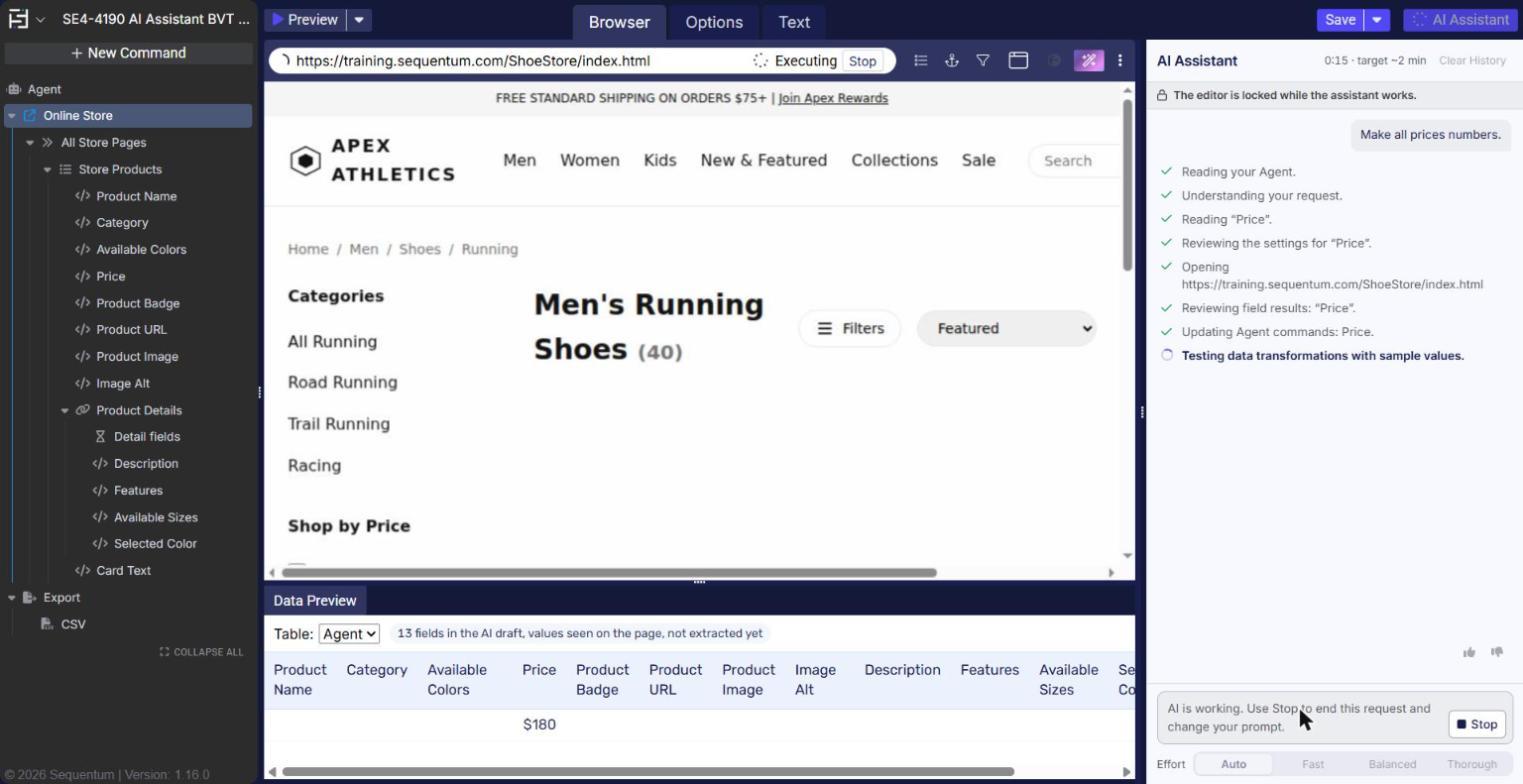
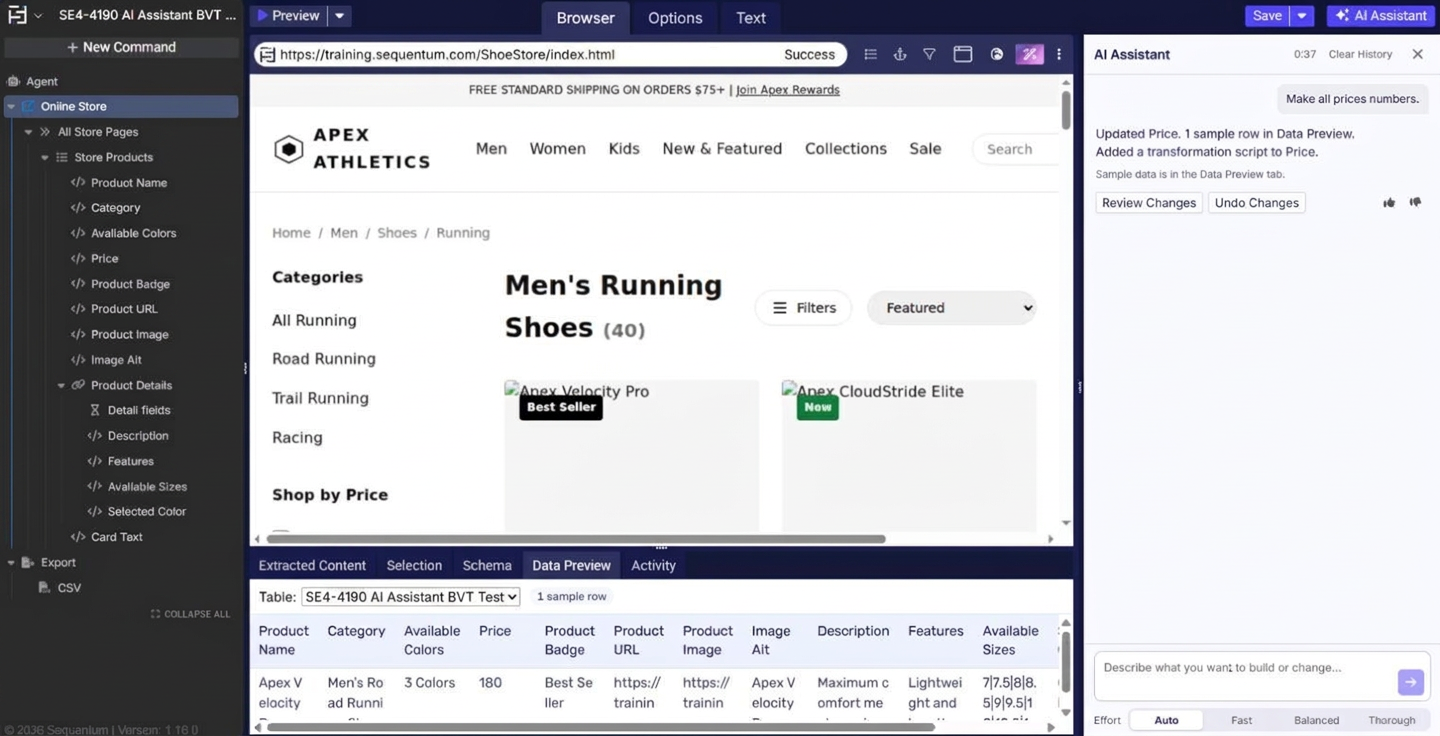
When it finishes, the panel summarises what was changed, and the new or changed commands appear in the agent tree on the left of the editor.
Follow-Up Requests, Review Changes and Undo
In this section, we will refine the agent with follow-up requests, check what the Assistant changed, and undo a change we do not want.
Ask a follow-up request
The Assistant remembers the conversation, so you can keep asking for changes in the same chat. Examples of follow-ups are "Make all prices numbers", "Also extract the product rating" or "Only keep products under 100".
-
Type the follow-up in the message box at the bottom of the AI Assistant panel.
-
Click the arrow button to send it.
-
Wait for the Assistant to finish. The agent tree on the left updates with the new or changed commands.
Review the changes
-
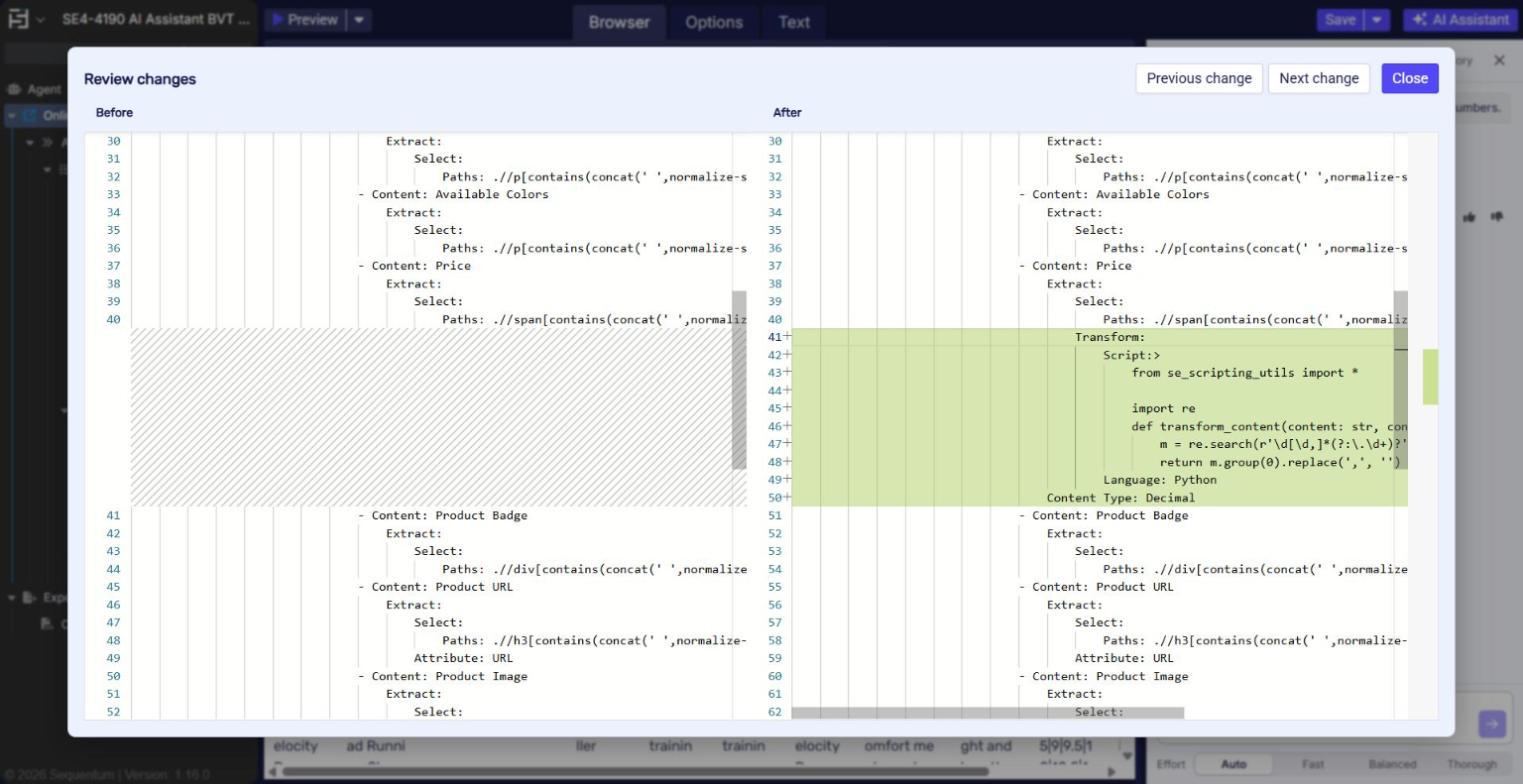
In the Assistant's response, click Review Changes. The Review changes window opens, showing your agent Before and After side by side. Added lines are highlighted in green.
-
Click Next change and Previous change to move through each change, then click Close.
-
Use Preview or the Data Preview tab at the bottom of the editor to check that the agent returns the data you expect.
Undo a change
-
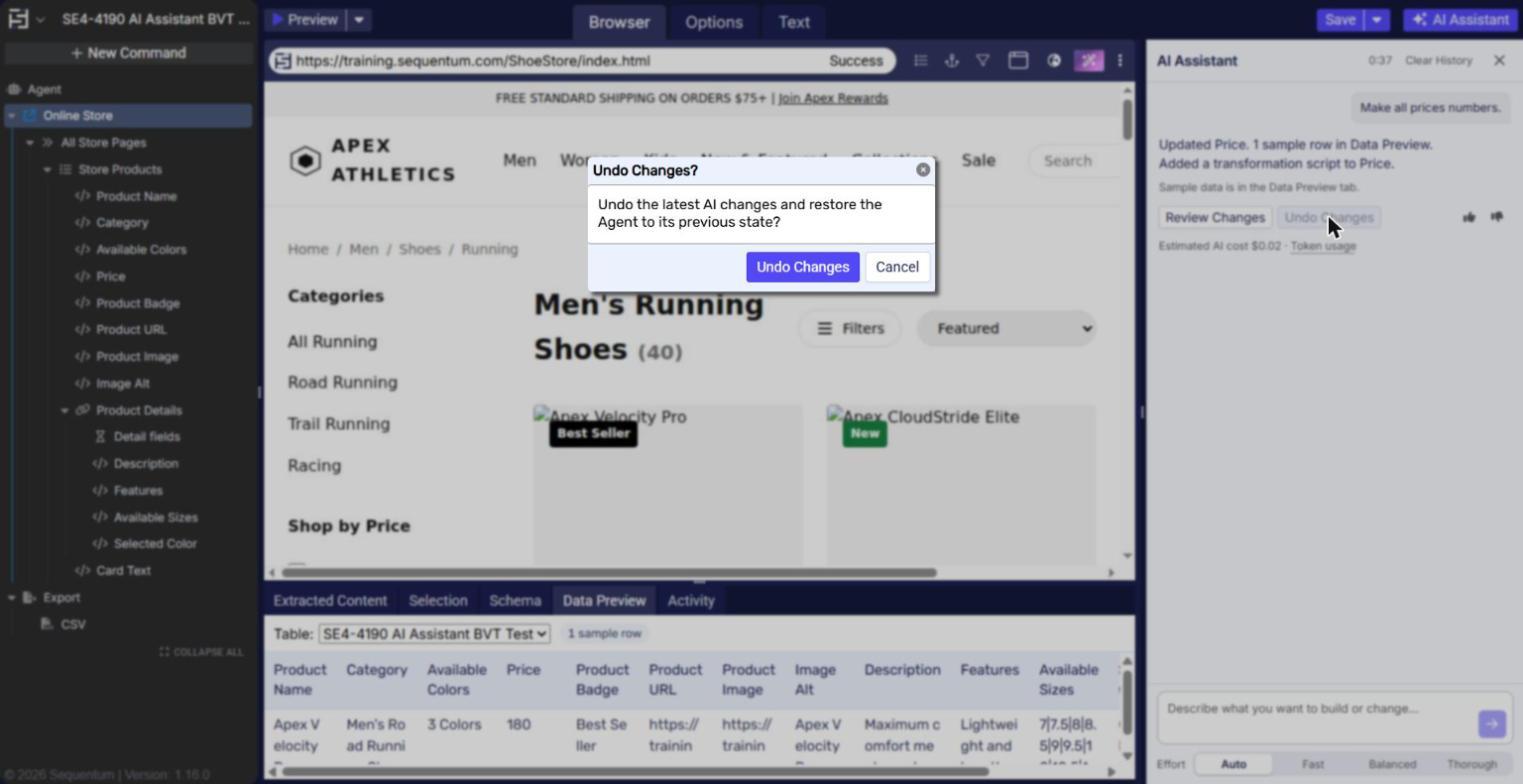
In the Assistant's response, click Undo Changes.
-
A confirmation asks Undo the latest AI changes and restore the Agent to its previous state? Click Undo Changes to confirm, or Cancel to keep the changes.
-
The agent returns to the state it was in before that request.
Note: Undo Changes reverses the latest AI change only. Changes you made by hand in the editor are not part of it. Click Save when you are happy with the agent. Clear History at the top of the panel clears the chat.
Ask a how-to question
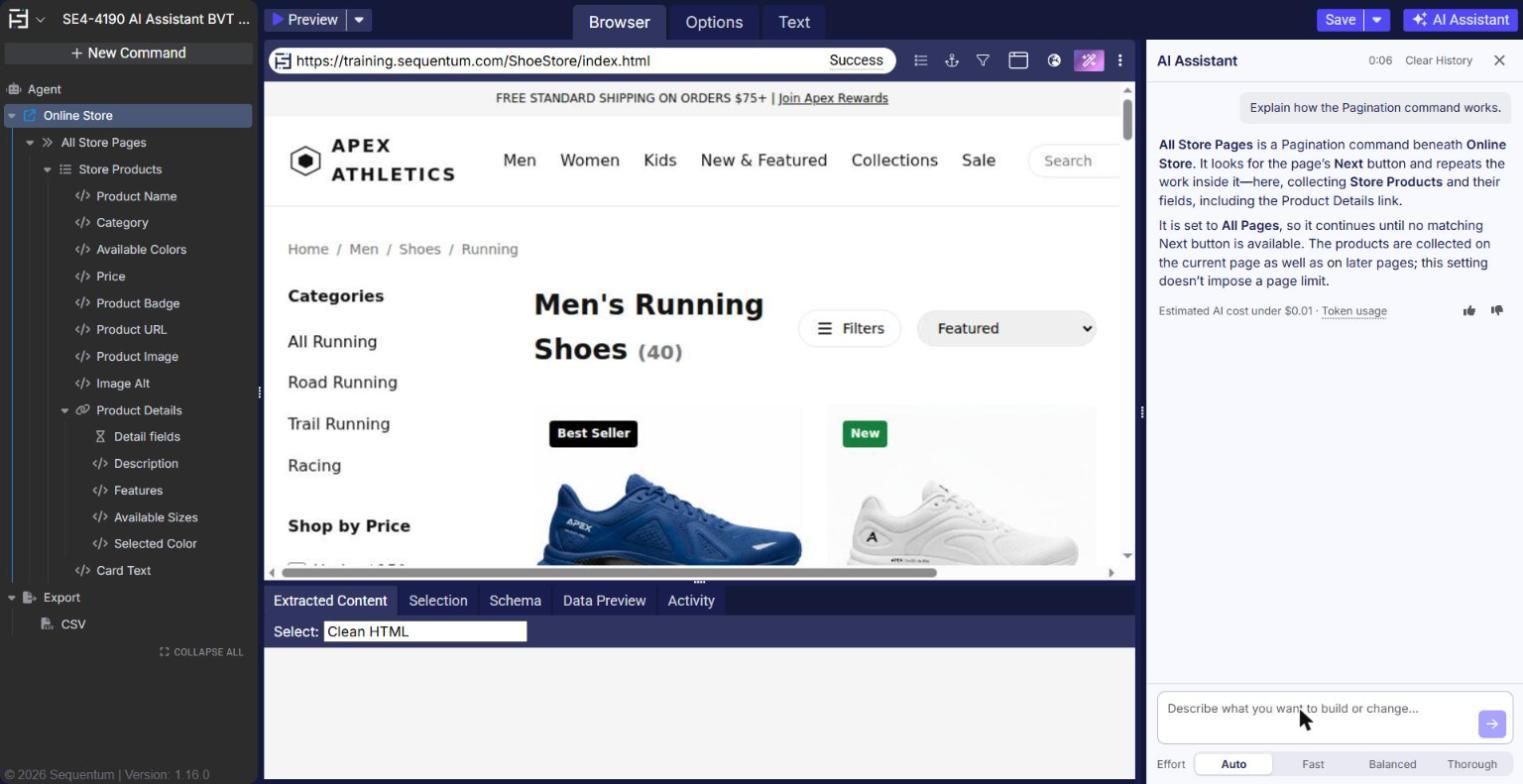
You can also ask the Assistant how the editor works, for example "Explain how the Pagination command works" or "How do I wait for delay loaded content?". The Assistant answers in the chat and does not change your agent.
Needs Your Input, Page Names and Stop
In this section, we will cover what to do when the Assistant asks you a question, how it names pages, and how to stop a request.
Needs your input
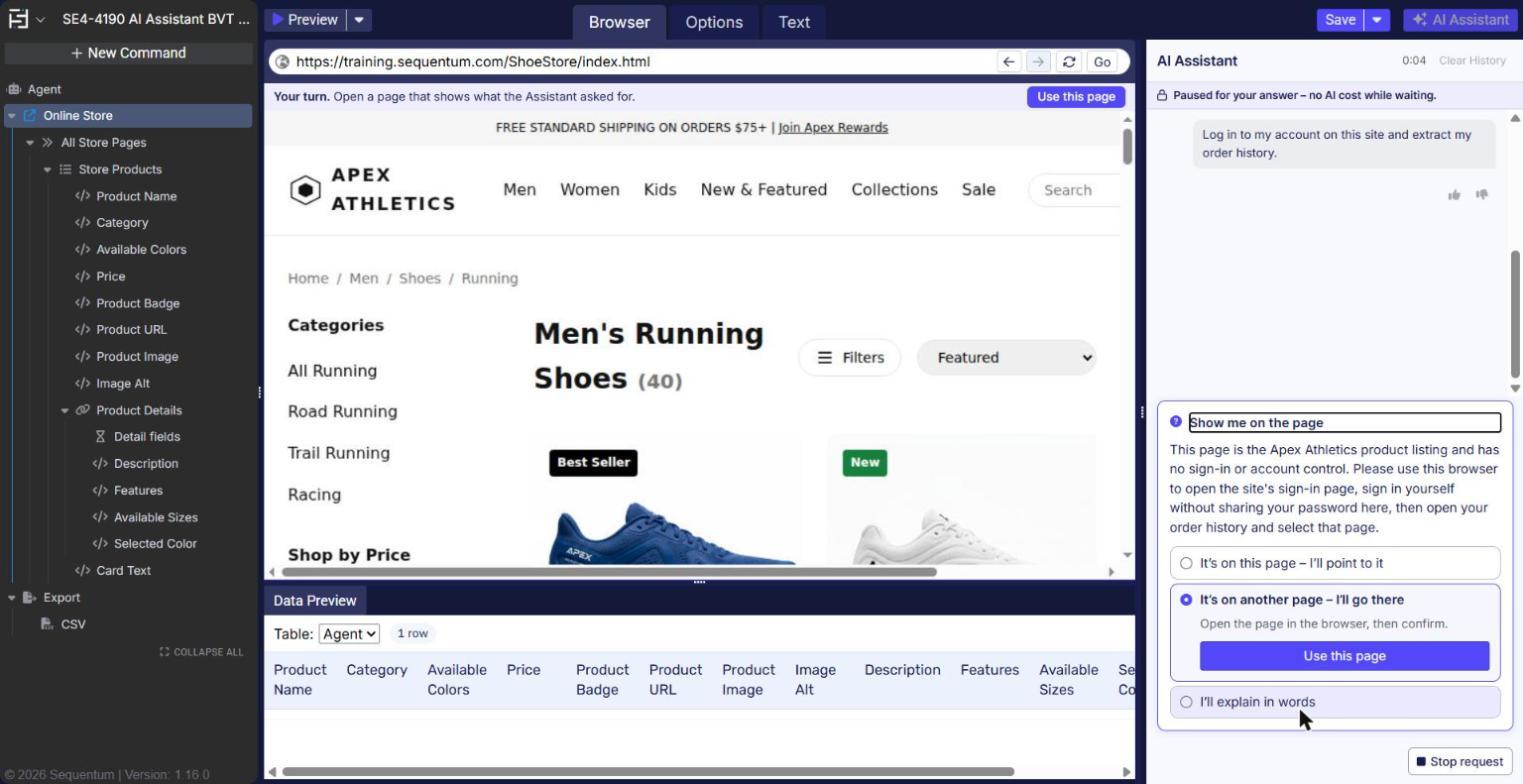
Sometimes the Assistant needs you to show it something, for example a page that is behind a sign-in. In that case, a Needs your input panel appears in the chat with a question and a few options. The request pauses while it waits for you, and the chat shows Paused for your answer – no AI cost while waiting.
-
Read the question in the Needs your input panel, for example Show me on the page.
-
Choose how you want to answer: It's on this page – I'll point to it, It's on another page – I'll go there, or I'll explain in words.
-
If the page is somewhere else, use the browser view in the editor to open it (and sign in yourself if the site needs it), then click Use this page. The Your turn banner above the browser view has the same button.
-
The Assistant continues from where it stopped. To cancel instead, click Stop request.
Note: Never type real passwords or secrets into the chat. If a site needs a login, complete the sign-in step yourself in the editor.
Page names
When the Assistant builds a multi-page agent, it gives each page a clear, descriptive name, such as "All Store Pages" or "Product Details", so you can find them in the agent tree. You can rename any page by hand at any time.
Stop a request
If a request is taking too long or you sent it by mistake, click Stop while the Assistant is working. The request is cancelled, and you can send a new one right away. The chat may show a short message that the request was stopped.
Choose an effort level
Use the Effort selector under the message box to balance speed and depth: Fast for small, simple changes, Balanced for most requests, Thorough for large or complicated agents, and Auto to let the Assistant decide.
Rate the Assistant's Responses
In this section, we will show how to tell Sequentum whether a response was helpful. Your ratings help improve the AI Assistant.
-
Find the thumbs up and thumbs down icons on the right of the Assistant's response, next to Review Changes and Undo Changes.
-
Click the thumbs up icon if the response did what you asked.
-
Click the thumbs down icon if it did not. The Report an AI Assistant issue window opens and asks What went wrong, and what did you expect?
-
Describe the problem in the box, then click Send Feedback. Click Cancel if you change your mind.
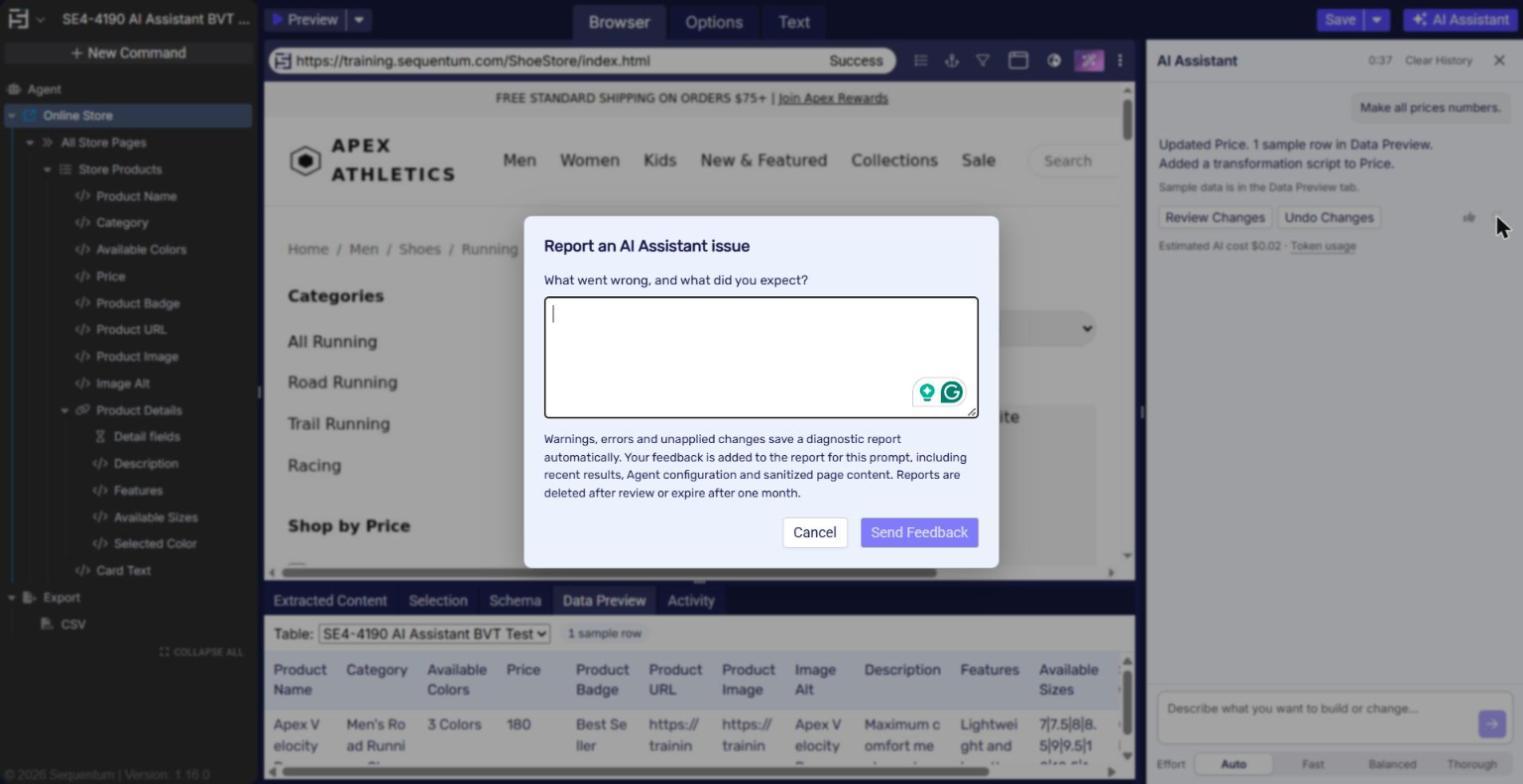
The window also explains what is sent. Warnings, errors and unapplied changes save a diagnostic report automatically. Your feedback is added to the report for that prompt, including recent results, the agent configuration and sanitized page content. Reports are deleted after review or expire after one month.
Note: Because the report includes your agent configuration, do not put confidential data, personal information or credentials in your comment or in the agent you report.
Tips, Troubleshooting and FAQ
Tips for better results
-
Name the website and the exact fields you want, for example "Extract name, price and rating from each product card".
-
Build in small steps. Ask for the basic agent first, then add pagination, filters or detail pages with follow-up requests.
-
Check every change with Review Changes and Preview before you save.
-
Use Undo Changes freely. It is the quickest way to get back to a working agent.
Troubleshooting
|
Problem |
What to do |
|---|---|
|
The AI Assistant button is not visible |
Reload the editor. If it is still missing, the feature may not be enabled for your account or environment. Contact your administrator or Sequentum Cloud Support. |
|
The Assistant produced the wrong data |
Describe what is wrong in a follow-up, or click Undo Changes and rephrase the request with more detail. |
|
A request is taking too long |
Click Stop, then try again with a smaller request or a different Effort level. |
|
The Assistant answers a question that is not about Sequentum |
The Assistant is designed for building agents and using the editor, so use it for those. Off-topic answers are not supported. |
|
The Assistant asks for more information |
Answer in the Needs your input panel and the request continues. |
FAQ
Does the Assistant change my agent automatically? It changes the agent open in the editor, but nothing is permanent until you click Save.
Can I still edit the agent by hand? Yes. You can edit commands, selections and settings at any time, before or after using the Assistant.
Who sees my ratings? Sequentum administrators, as described in the administrators section.
If you have questions or need help, contact Sequentum Cloud Support at cloud.support@sequentum.com.