
Overview
The Data Catalog keeps the information collected by your agents in one place, so you can review results, track changes over time, ask questions about your data and download it for further use.
The Data Catalog is available in two places:
-
On each agent, in the agent's Dataset tab, for connecting the agent to a dataset and working with its data.
-
In the organization, on the Data Catalog tab under Organization, where organization administrators view and manage every dataset.
An administrator can also control how much interactive AI and SQL usage an organization gets. See Organization admin controls.
Connecting an agent to a dataset
-
Open the agent and go to its Dataset tab.
-
Select Configuration.
-
Choose how to connect:
-
Connect To New Dataset: creates a dataset using the agent's name and data format. The connection is configured automatically.
-
Custom Configuration: connects the agent to an existing dataset, or lets you review and adjust the settings. You can also assign a category to help organize your datasets. Categories are optional.
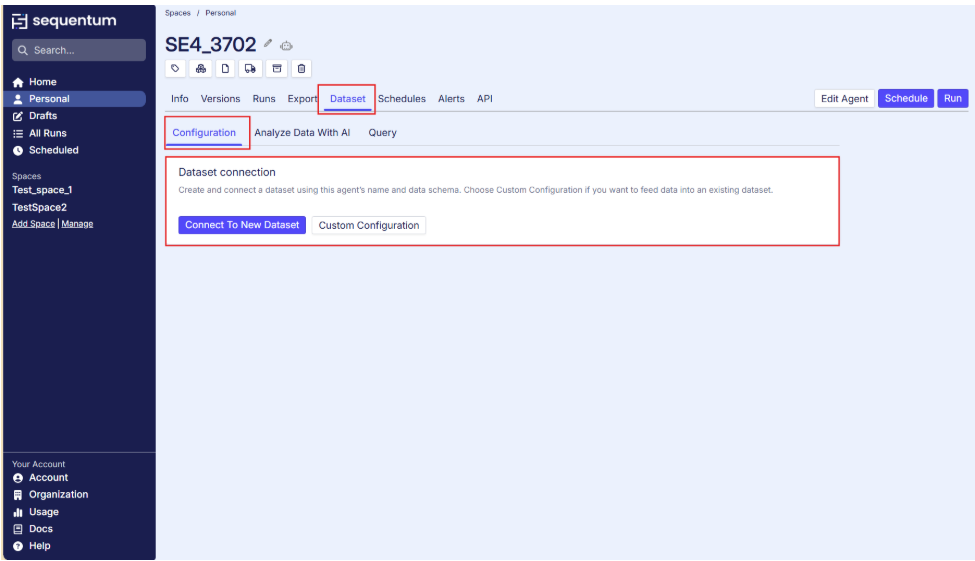
Dataset tab > Configuration, connection options
-
What happens after you connect
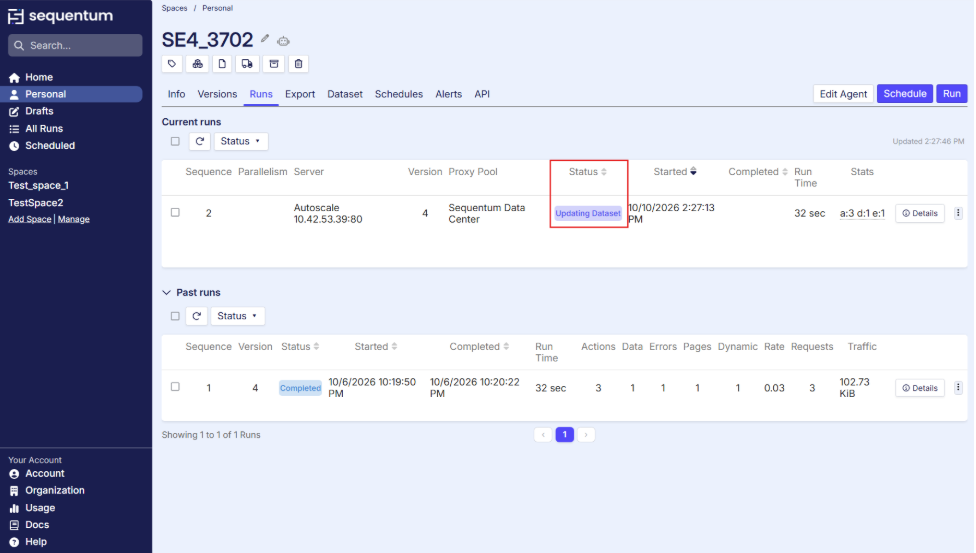
Once connected, every successful agent run automatically updates the dataset and adds a new snapshot.
-
While the update is in progress, the run displays Updating Dataset.
-
If the update fails, the run is marked as failed.
-
Failed agent runs do not contribute data unless you enable the option to also feed available data when extraction fails.
Note: The option Also, feed available data when extraction fails is part of the connection settings. When it is off, only successful runs add data.
When the agent's data format changes
If the agent's data format changes and no longer matches the dataset, a warning appears. Where possible, choose Update Dataset To Match Agent to update the dataset to the new format.
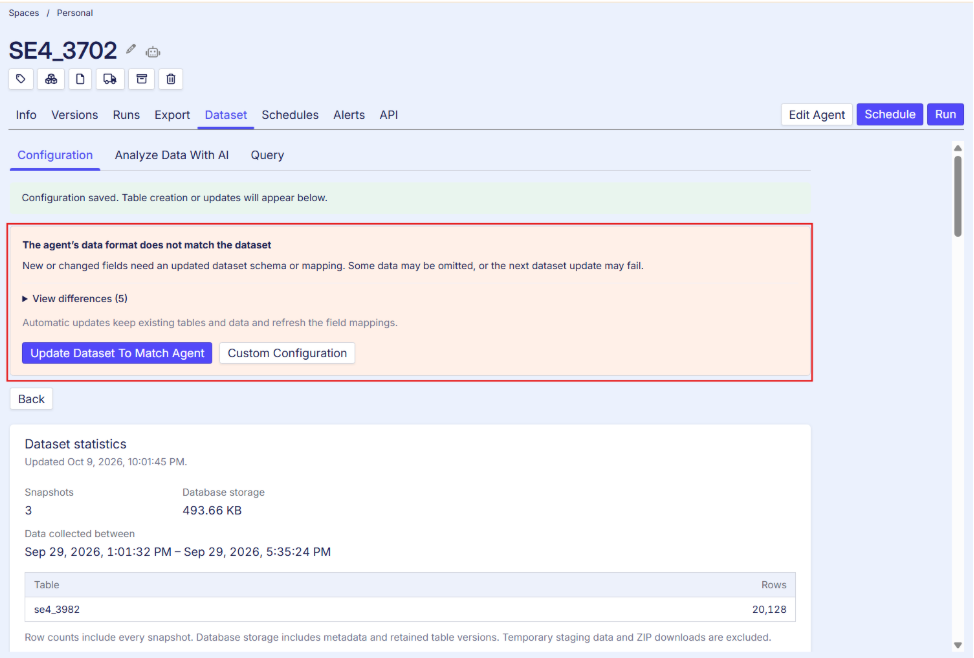
Reviewing dataset statistics
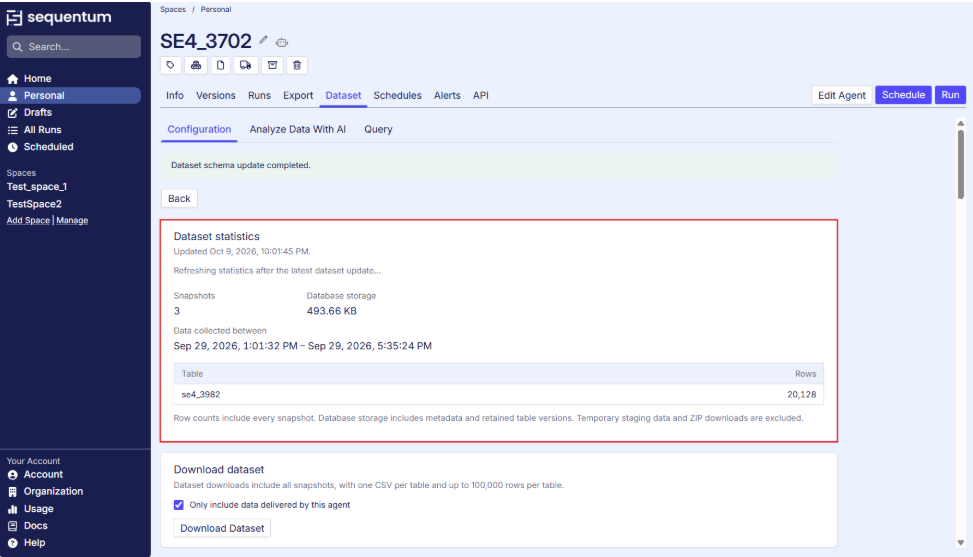
The Configuration tab shows an overview of the connected dataset:
-
The number of snapshots.
-
The number of rows in each table.
-
The earliest and latest collection dates.
-
The storage used.
-
Downloaded file information, when files are present.
Statistics refresh automatically after each dataset update.
Working with your data
Analyze Data With AI
Select Analyze Data With AI and ask a question in everyday language. For example:
-
"Show the highest-rated products."
-
"What changed since the previous snapshot?"
-
"Which products increased in price?"
-
"Graph those changes."
-
"Download these results."
You can ask follow-up questions without repeating the details. For example, after asking for the top-rated products, you can ask "Graph that" or "Compare them with the previous snapshot."
Answers can include explanations, tables and charts. Ask explicitly when you want to see the data or a graph. Select New Conversation to start a separate discussion.
Use Only use data delivered by this agent to limit the analysis to the current agent's contributions. Clear this option to include contributions from other agents you have permission to access.
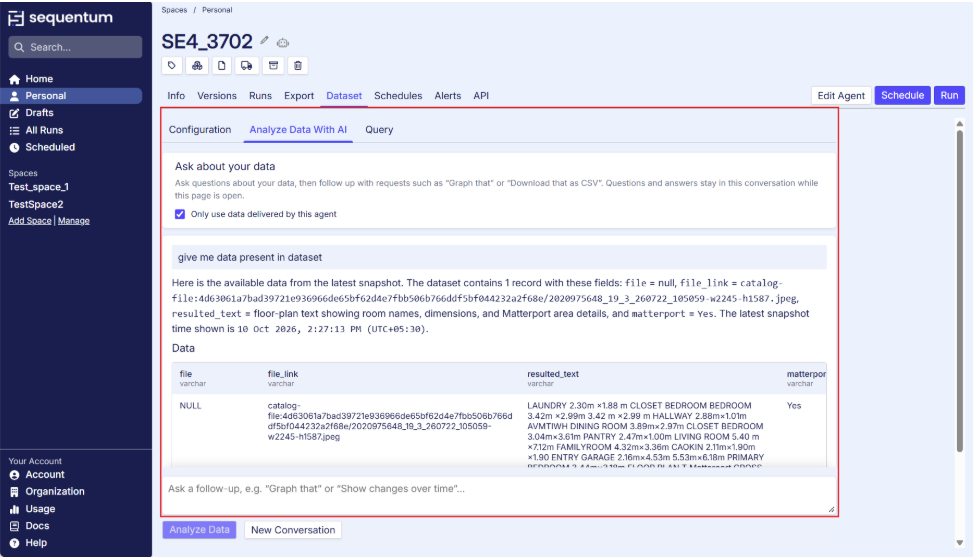
Note: Analyze Data With AI is subject to the organization limits described in Organization admin controls. When a limit is reached, new requests are blocked until it resets.
Query data
The Query tab is for users who want to write their own data requests in SQL.
-
Open the Query tab. The Tables and columns section lists the available information.
-
Write your query.
-
Select Run Query to display the results.
-
Download the returned data, or cancel the query while it is running.
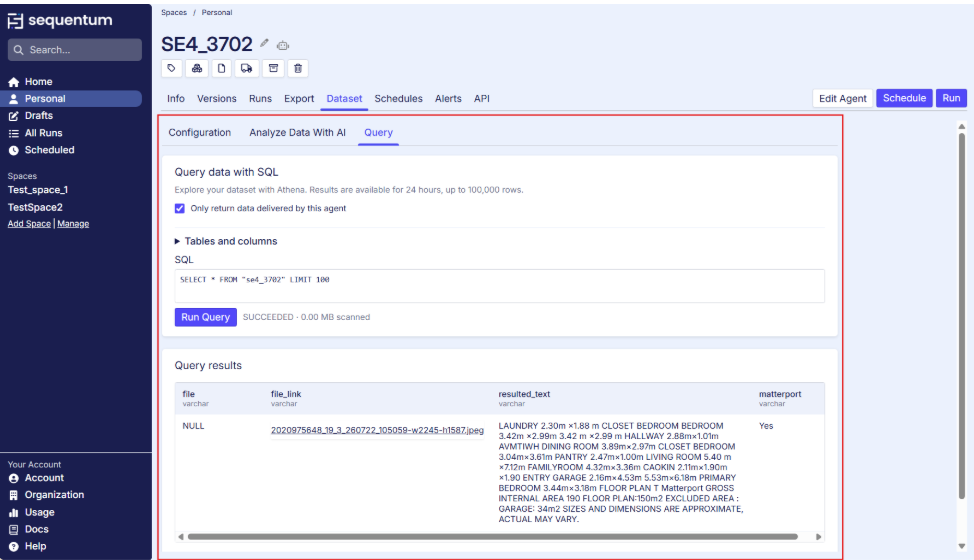
Query tab with Tables and columns and results
Download a dataset
-
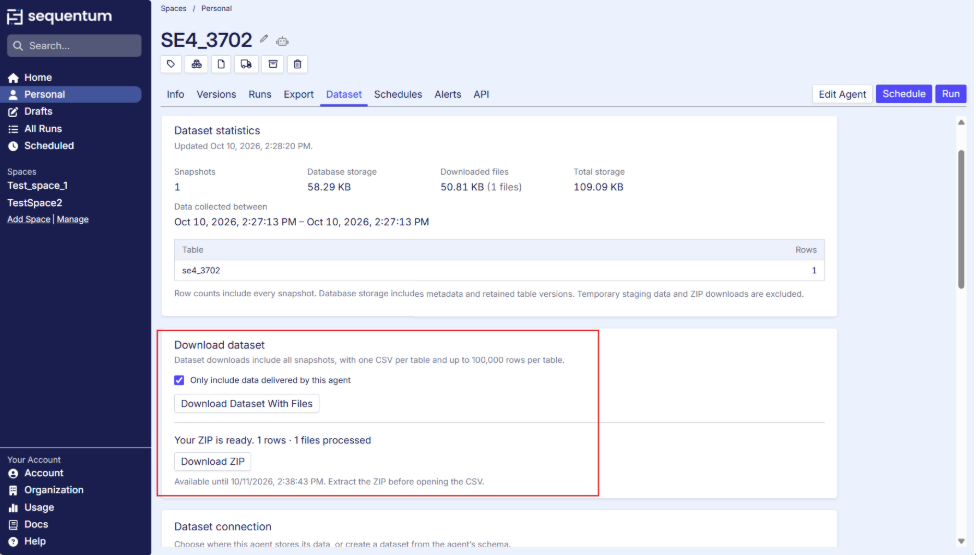
On the Configuration tab, find the Download dataset panel.
-
Optionally select Only include data delivered by this agent to limit the download to the current agent's contributions.
-
Start the download. Progress appears in the same panel.
-
When the download is ready, select Download ZIP, then extract the package before opening its contents.
The download includes all snapshots, with a separate spreadsheet-compatible file for each table, up to 100,000 rows per table. If the dataset contains downloaded files, these can be included in the same download.
Remove a connection
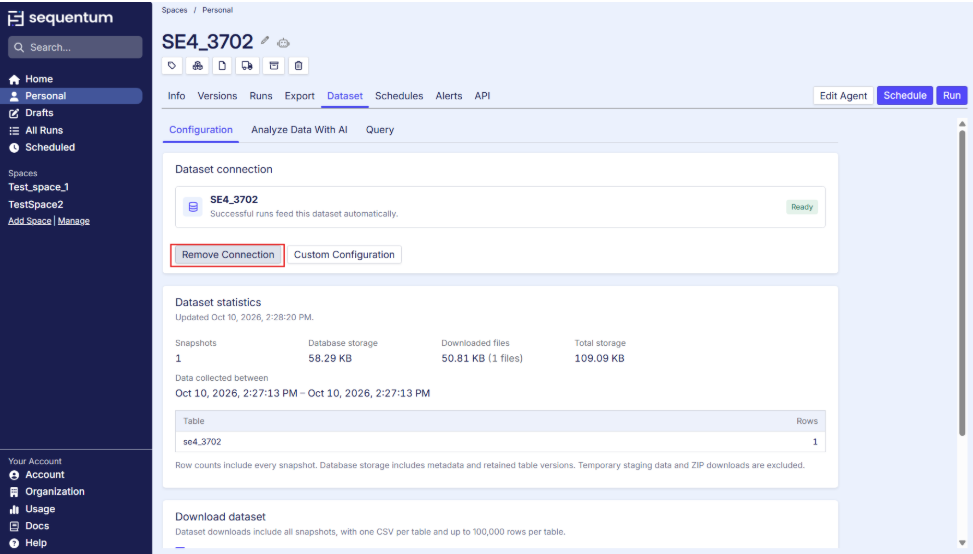
Select Remove Connection to stop an agent from contributing to its dataset. You can keep the dataset or choose to delete it.
If other agents are connected, they are listed before you confirm deletion. Deleting the dataset removes its stored data and disconnects all connected agents.
Organization Data Catalog
The Data Catalog tab in Organization gives organization administrators one place to view, manage and explore all of the organization's datasets.
View datasets
The dataset list shows each dataset's:
-
Name
-
Category
-
Status
-
Row count
-
Number of snapshots
-
Size
-
Connected agents
Select an agent's name to open its Dataset tab. Select Manage to manage a dataset, or Explore Dataset to work with its collected data.
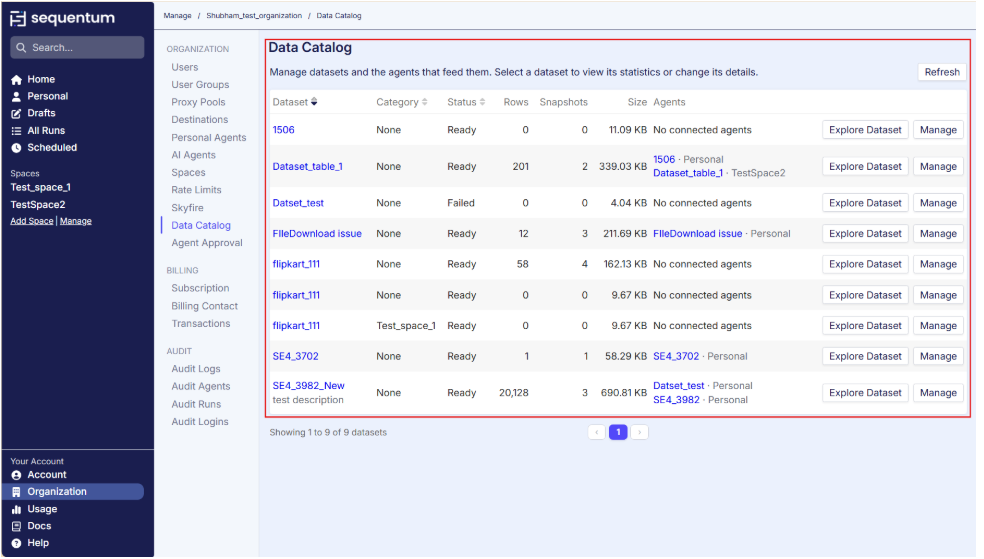
Manage a dataset
On the Manage Dataset page, administrators can:
-
Change the dataset's name and description.
-
View the agents connected to it.
-
Review statistics, including row counts, snapshot count, storage size and the dates covered by the data.
-
Delete the dataset.
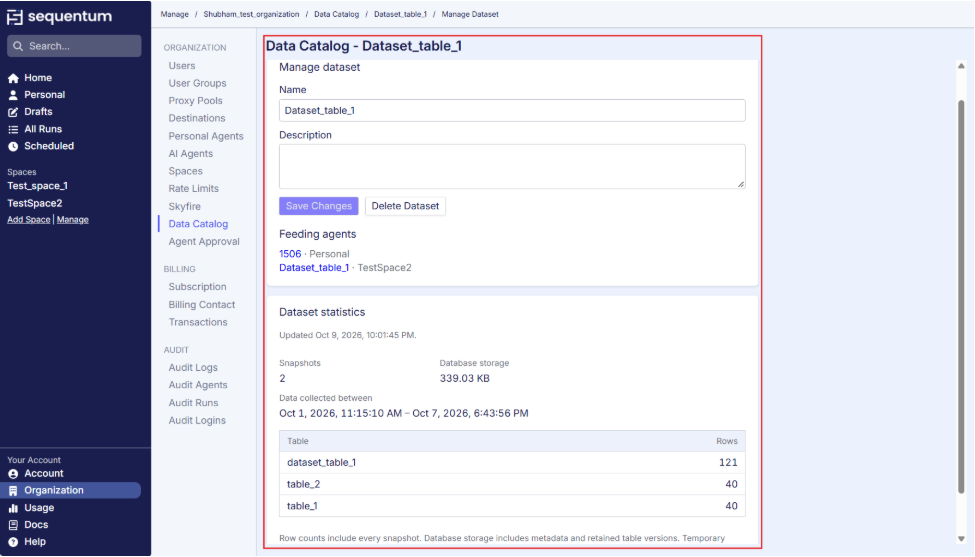
Delete a dataset
-
On the Manage Dataset page, select the delete option.
-
Review the confirmation. It lists every agent that will be affected.
-
Confirm the deletion.
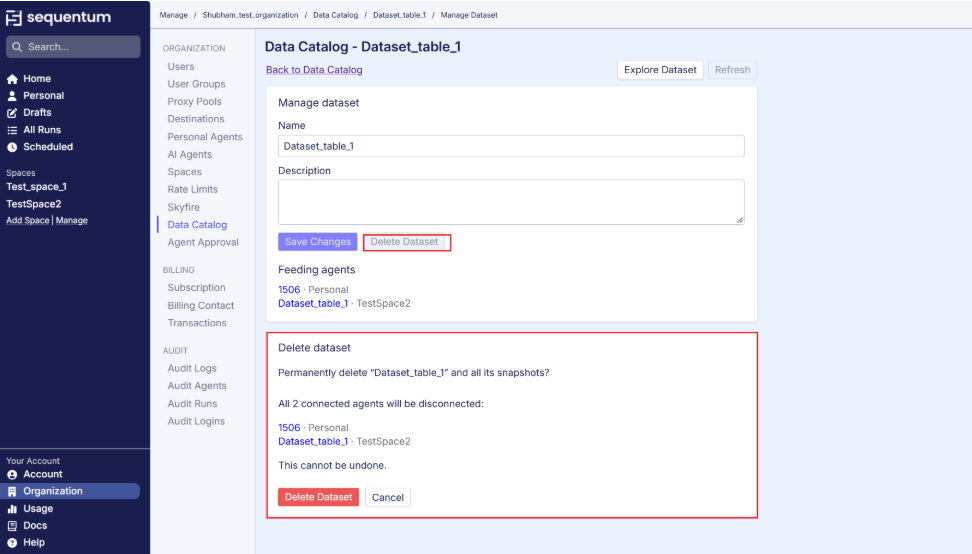
Note: Deleting a dataset also disconnects all connected agents. It permanently removes the dataset's data and associated downloaded files and cannot be undone.
Explore a dataset
The Explore Dataset page includes data from every agent that has contributed to the dataset. A dataset remains available for exploration even when no agents are currently connected.
-
Analyze Data With AI: ask questions in everyday language, such as "Compare the latest snapshot with the previous one." You can ask follow-up questions, request a graph, or ask to download selected results.
-
Query: lets users familiar with SQL select and examine specific data.
-
Download Dataset: downloads the collected data for use elsewhere. Downloads include all snapshots, with a separate CSV file for each table and up to 100,000 rows per table. Associated downloaded files can also be included when available.
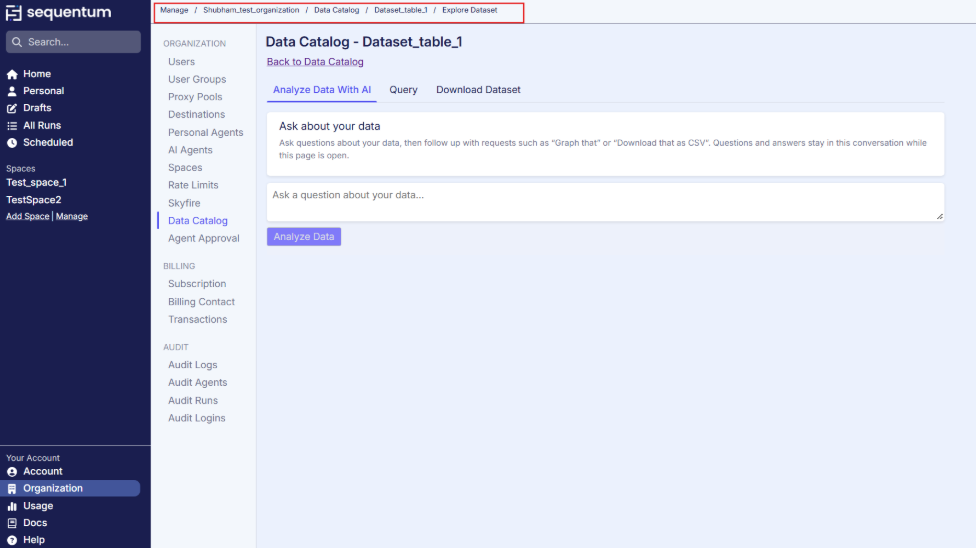
Organization admin controls
Administrators can control how much interactive AI, SQL and download usage each organization gets from the Data Catalog. Dataset feeding from agents is not affected by these settings.
Where to find the settings
-
Go to Manage → Admin → Organizations.
-
Find the organization and open it to Edit.
-
Scroll to the Data catalog settings.
-
Change the values you need, then click Save Organization. Click Cancel to discard your changes.
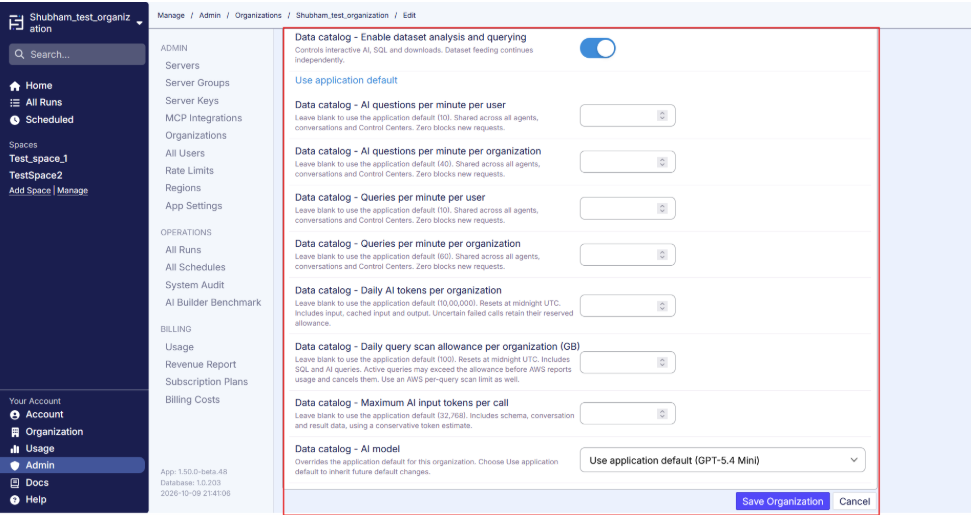
Note: Every limit field can be left blank. A blank field uses the application default shown in the field's description, so future default changes apply automatically. Entering 0 in a limit blocks new requests of that type.
Turn dataset analysis and querying on or off
Data catalog – Enable dataset analysis and querying controls interactive AI, SQL and downloads for the organization. Dataset feeding continues independently, so agents keep adding snapshots to their datasets while this setting is off.
Usage limits
|
Setting |
Application default |
What it limits |
|---|---|---|
|
AI questions per minute per user |
10 |
Analyze Data With AI questions each user can ask per minute. Shared across all agents, conversations and Control Centers. |
|
AI questions per minute per organization |
40 |
AI questions the whole organization can ask per minute. Shared across all agents, conversations and Control Centers. |
|
Queries per minute per user |
10 |
SQL queries each user can run per minute. Shared across all agents, conversations and Control Centers. |
|
Queries per minute per organization |
60 |
SQL queries the whole organization can run per minute. Shared across all agents, conversations and Control Centers. |
|
Daily AI tokens per organization |
1,000,000 |
AI tokens the organization can use per day. Resets at midnight UTC. Includes input, cached input and output. Failed calls whose usage is uncertain keep their reserved allowance. |
|
Daily query scan allowance per organization (GB) |
100 |
Data scanned per day by SQL and AI queries. Resets at midnight UTC. |
|
Maximum AI input tokens per call |
32,768 |
Size of a single AI request. Includes schema, conversation and result data, using a conservative token estimate. |
Note: Active queries may exceed the daily scan allowance before AWS reports their usage and cancels them. Use an AWS per-query scan limit as well if you need a hard cap on a single query.
Choose the AI model
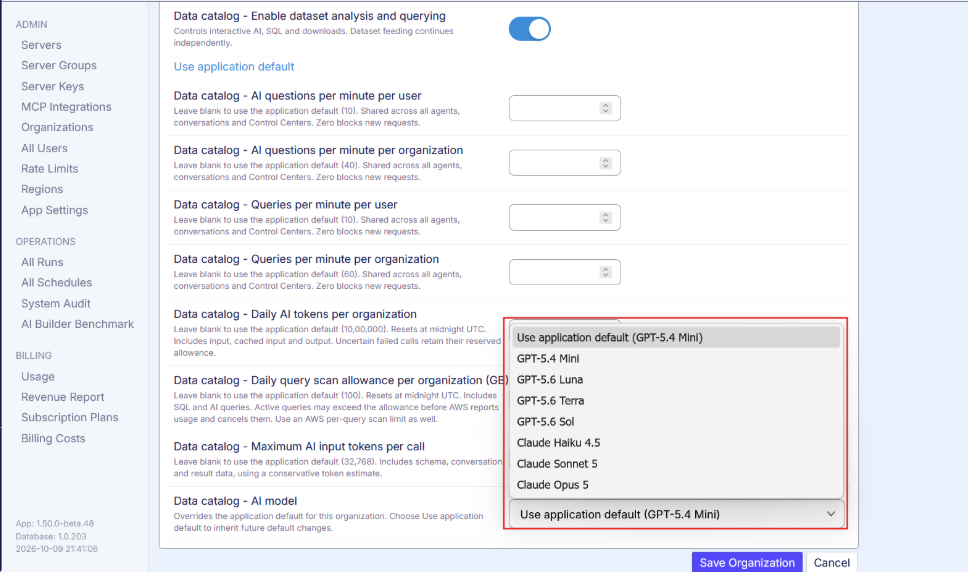
Data catalog – AI model sets which model answers Analyze Data With AI questions for this organization.
-
Leave it on Use application default to inherit the default model, shown in brackets in the dropdown, including future changes to that default.
-
Select a specific model to override the application default for this organization only.
Audit log
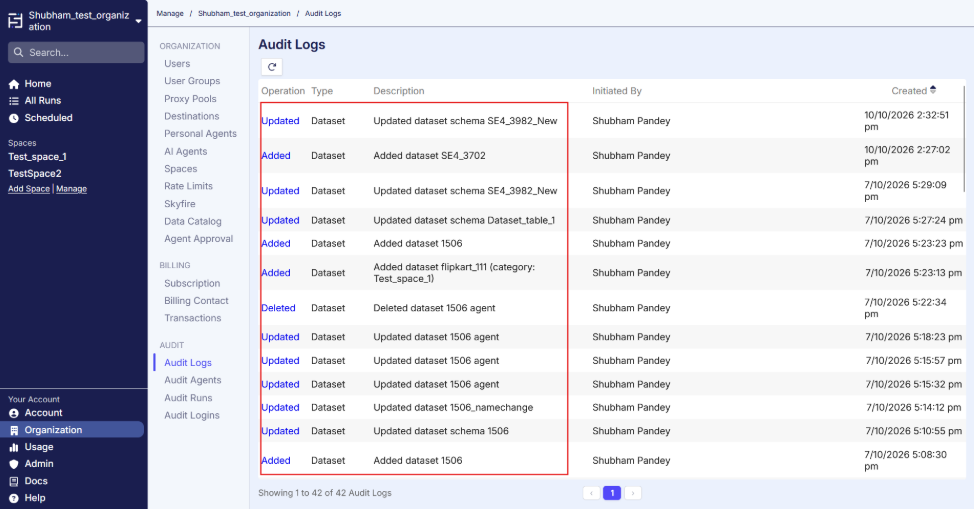
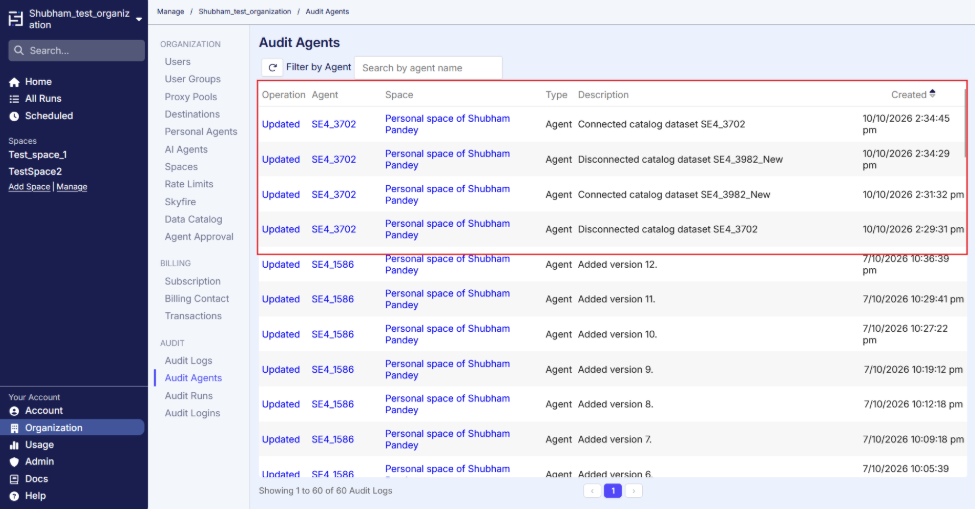
Changes to datasets and to agent connections are recorded in the audit log, so administrators can see who changed what and when. Each completed action creates exactly one audit entry, with the initiating user, a UTC timestamp, the organization and the operation. Audit entries follow the organization's audit setting and remain readable after a dataset or category is changed or deleted, under the existing audit retention policy.
Where to see the entries
-
Dataset actions appear in the Organization audit log under Dataset.
-
Agent connection and settings actions appear in the Configs audit log.
Pagination and date filtering work as in the rest of the audit log.
What is recorded
|
Area |
Actions that create an entry |
|---|---|
|
Dataset |
Creating a dataset, updating its schema, changing its name or description, and deleting it. |
|
Agent connection |
Connecting or switching datasets, changing table and column mappings or transformations, enabling or disabling the connection, changing ingestion on failure, changing the default query scope, changing staging retention, and disconnecting. |
Queries, AI questions, viewing results, downloads and routine automatic ingestion are not recorded. Failed retries, unchanged saves, rejected requests and rolled-back changes also produce no entry.
When a dataset is created or deleted, the agent connections changed as part of that action do not create separate entries.
Details stored with each entry
Each entry stores a simple snapshot of the object as it was when the action completed.
-
Dataset entries: Id, Name, Description, CategoryId, CategoryName and Tables.
-
Connection entries: ConfigId, DatasetId, DatasetName, CategoryId, CategoryName, Tables, Enabled, IngestOnFailure, AgentOnly and StagingRetentionDays.
-
Tables: each table lists its Name and Columns, and each column lists its Name and Type.
CategoryName is empty for uncategorized datasets. Mapping and transformation edits are audited, but the mapping definitions and SQL are not copied into the details. Credentials, signed URLs, extracted rows, errors and full agent or job configuration are never stored.