
User Groups allow an Organisation Admin to control which users can access specific Spaces. By assigning a User Group to a Space, access is restricted to only the users in that group.
For example:
-
Users assigned to Space A cannot view or access agents or data in Space B.
-
Similarly, users assigned to Space B cannot access resources in Space A.
-
The Organisation Admin always has full visibility and management access across all Spaces, regardless of any access restrictions.
Note: Space access is configured and managed by the Organisation Admin based on your organisation's business requirements.
Creating a User Group
-
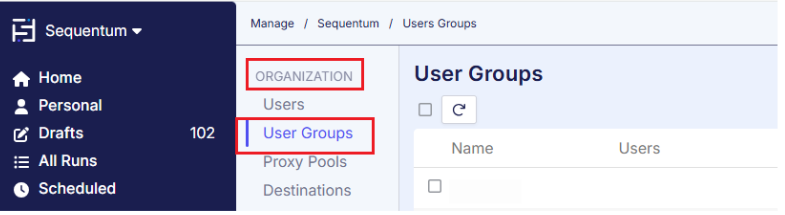
Navigate to Organisation > User Groups.
-
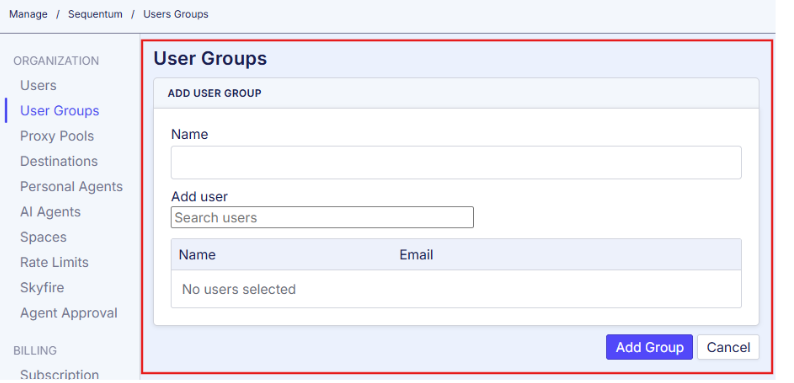
Click New User Group. A New User Group form will open.

-
Enter the following details:
-
User Group Name
-
Users to be included in the group
Click Add Group.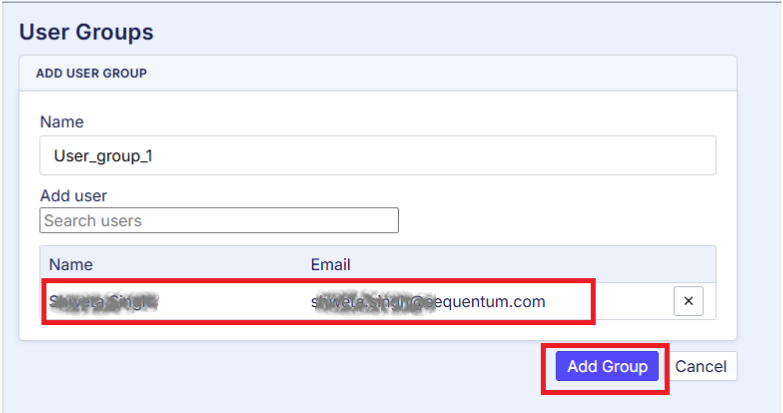
-
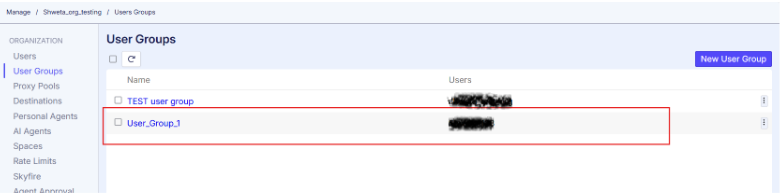
The User Group is created successfully and is displayed on the User Groups page.
Assigning a User Group to a Space
To restrict access to a Space, assign one or more User Groups while creating the Space.
-
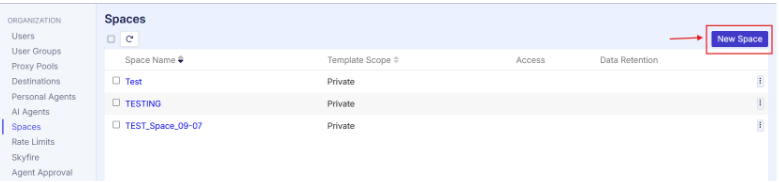
Navigate to Organisation > Spaces.
-
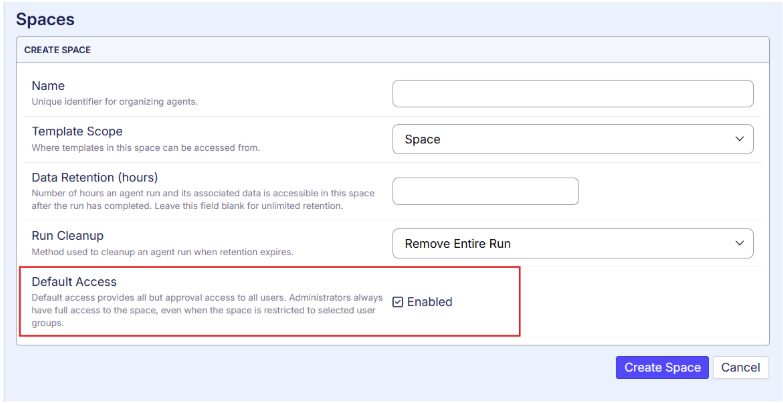
Click New Space. The New Space form opens.Enter the required Space details.
-
By default, the Default Access option is enabled.
-
When Default Access is enabled, all users are granted access to the Space (except approval-related permissions).
-
Administrators continue to have full access regardless of this setting.
-
To restrict access to specific users:
-
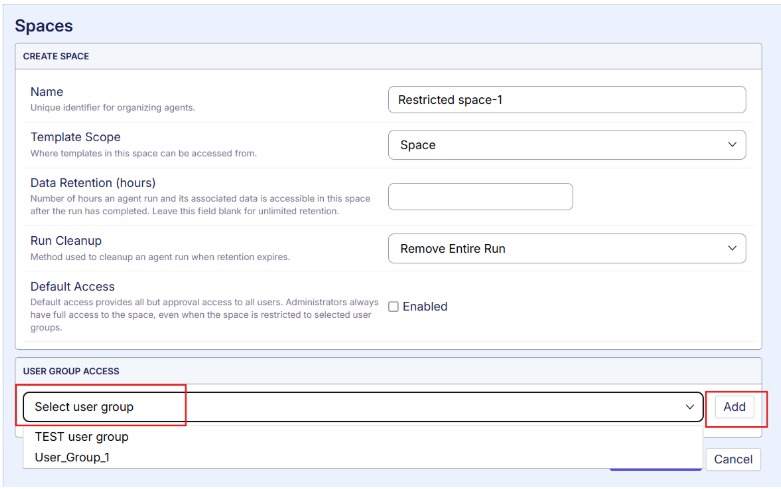
Clear the Default Access checkbox.
-
Select the required User Group from the Select User Group drop-down list.
-
Click Add.
-
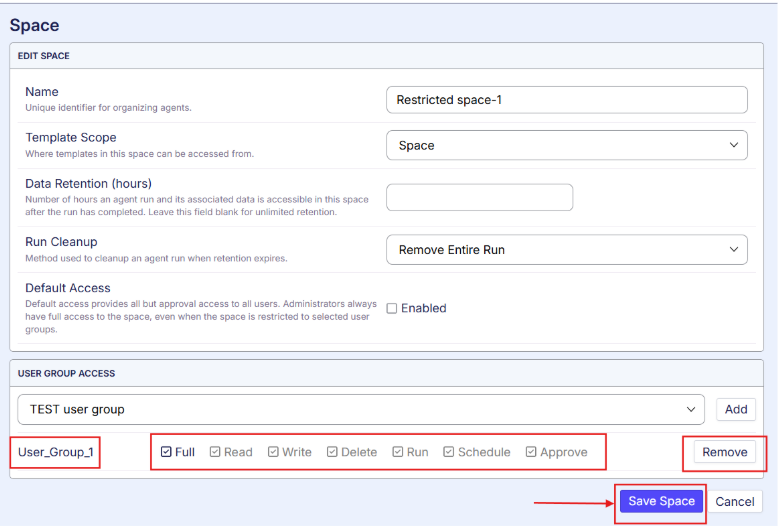
The selected User Group is added to the access list.
-
By default, the User Group is granted full access to the Space.
-
The Organisation Admin can modify the permissions as required.
-
To remove a User Group, click Remove.
-
Click Save Space button, and the newly created Space appears in the Spaces list.
Access Behaviour
After the Space is created:
-
Only the Organisation Admin and the users who belong to the assigned User Group can access the Space.
-
Users who are not members of the assigned User Group cannot view or access the Space, its agents, or its data.
-
The Organisation Admin retains unrestricted access to all Spaces, irrespective of the configured permissions.
